
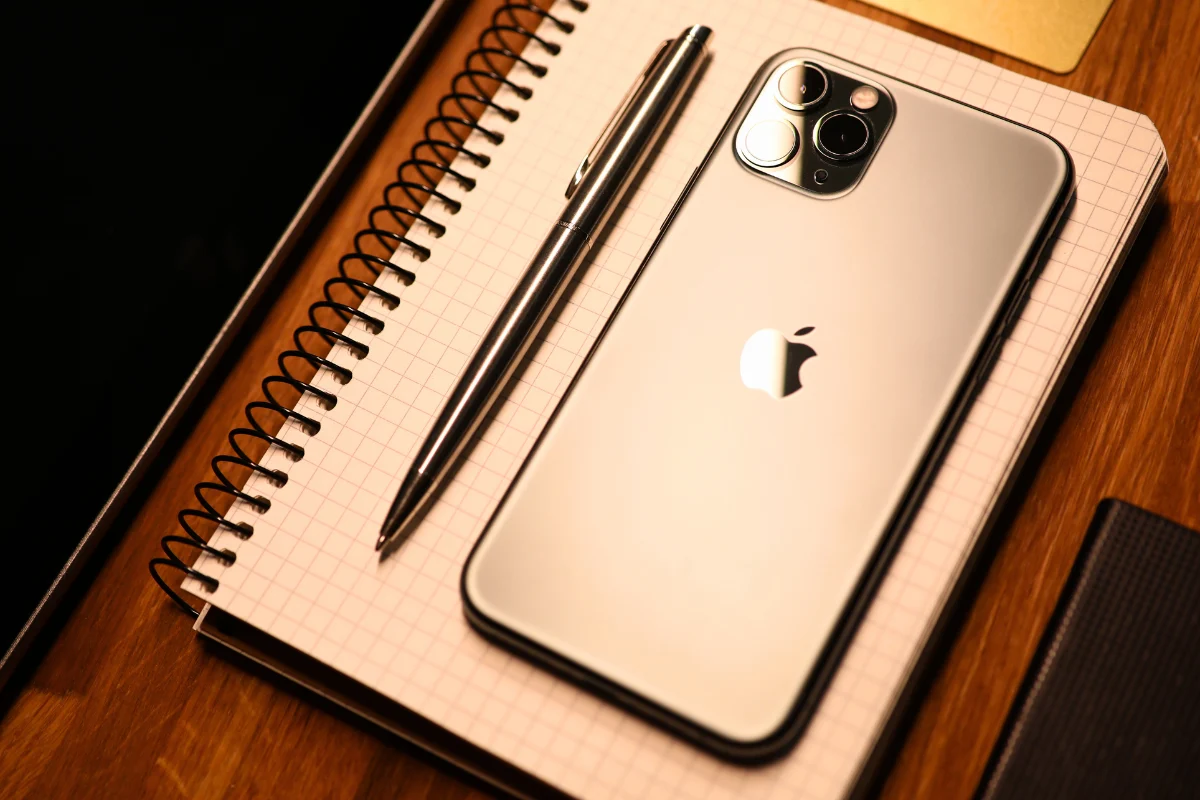
If your iPhone’s speaker has suddenly gone quiet, you’re not alone. Whether you’re missing calls, can’t hear notifications, or struggling to enjoy music and videos, a silent or muffled speaker can be incredibly frustrating.
In most cases, the issue lies with the bottom speaker, which is the main one used for media playback, alarms, and speakerphone calls. Luckily, many common speaker problems can be resolved with just a few simple checks or quick fixes at home.
This guide includes clear, practical steps to get your iPhone’s bottom speaker working again. We’ll also touch briefly on the earpiece speaker for those facing issues during phone calls. Let’s dive in and bring your iPhone’s sound back to life.
Understanding How iPhone Speakers Work
iPhones are equipped with two primary speakers: the bottom speaker and the earpiece speaker.
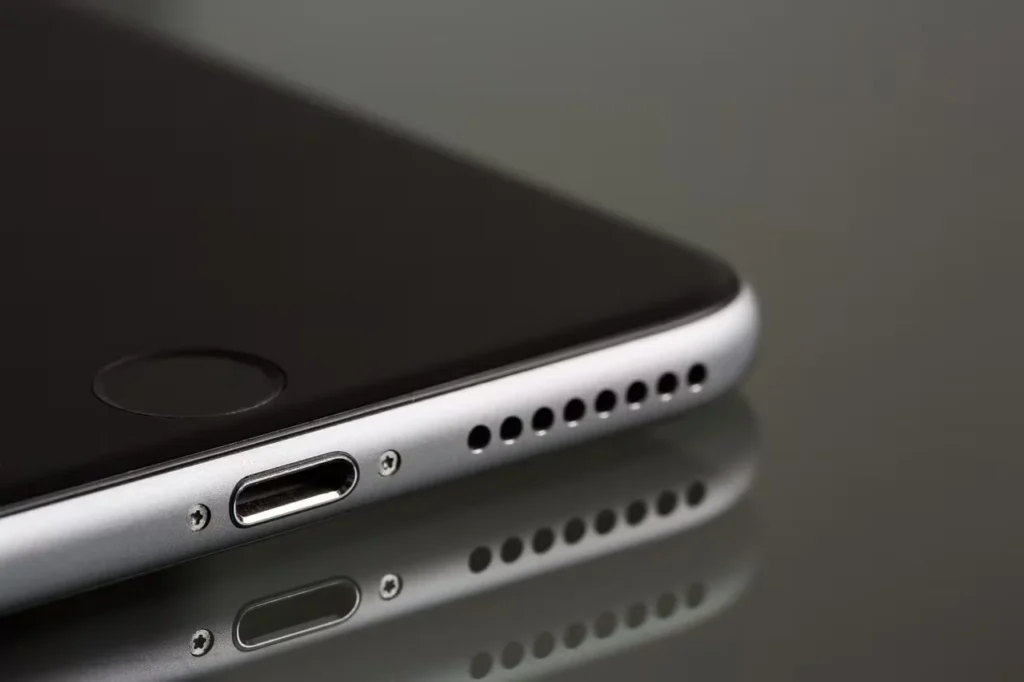
The bottom speaker is located near the charging port. It handles audio for music, videos, ringtones, and speakerphone calls. On the other hand, the earpiece speaker sits at the top of the phone and is used during regular calls when held to your ear.
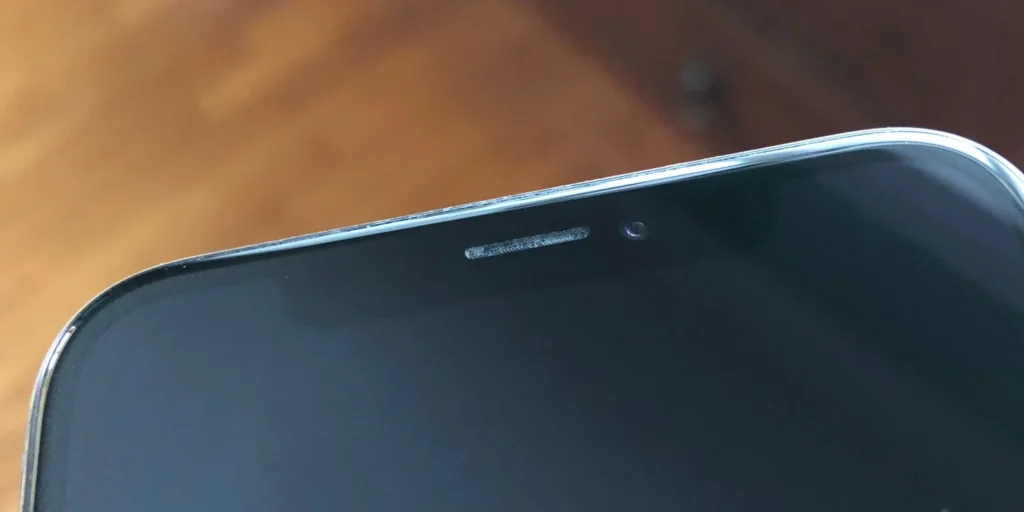
Understanding this difference can help you better pinpoint which speaker is malfunctioning, whether it’s general sound issues or just during calls.
Step 1: Check Silent Mode and Volume Settings
Sometimes the issue is as simple as having the wrong settings enabled. Before diving into more advanced fixes, start here.
- Check the Ring/Silent switch on the side of your iPhone. If it’s flipped toward the back of the phone and showing orange, your phone is in silent mode.
- Increase the volume using the physical buttons on the side.
- Open Control Center and move the volume slider up.
- Go to Settings > Sounds & Haptics and make sure the Ringer and Alerts slider is set high enough.
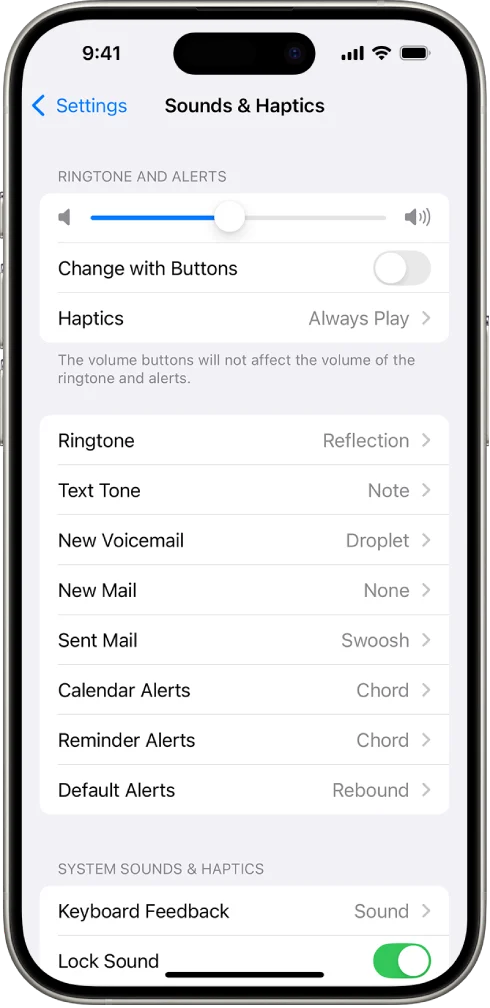
Also, test by playing a ringtone or video. If sound comes through your headphones but not the speaker, keep reading for further steps.
Step 2: Clean the Speaker Grill Safely
Dirt, dust, and pocket lint can build up over time and block sound from exiting your iPhone’s speaker grill properly.
Use these items for a safe cleaning process:
- A soft-bristled toothbrush or an anti-static brush
- A can of compressed air
- A small piece of painter’s tape or sticky tack
Cleaning steps:
- Gently brush across the speaker holes to dislodge dirt.
- Use compressed air in short bursts from a safe distance (do not insert the nozzle).
- Roll a bit of sticky tape and gently dab it over the speaker area to pick up debris.
Avoid poking the speaker holes with sharp objects like pins or needles, as this can damage internal components. After cleaning, play a sound or ringtone to test. If it’s still muffled, proceed to the next fix in the guide.
How to Clean iPhone Speakers at Home
Step 3: Disconnect Bluetooth and External Audio Devices
Sometimes your iPhone speaker isn’t the issue. It’s where the audio is being sent. Sound may be routed elsewhere if your device is still paired to wireless headphones or speakers.
To fix this:
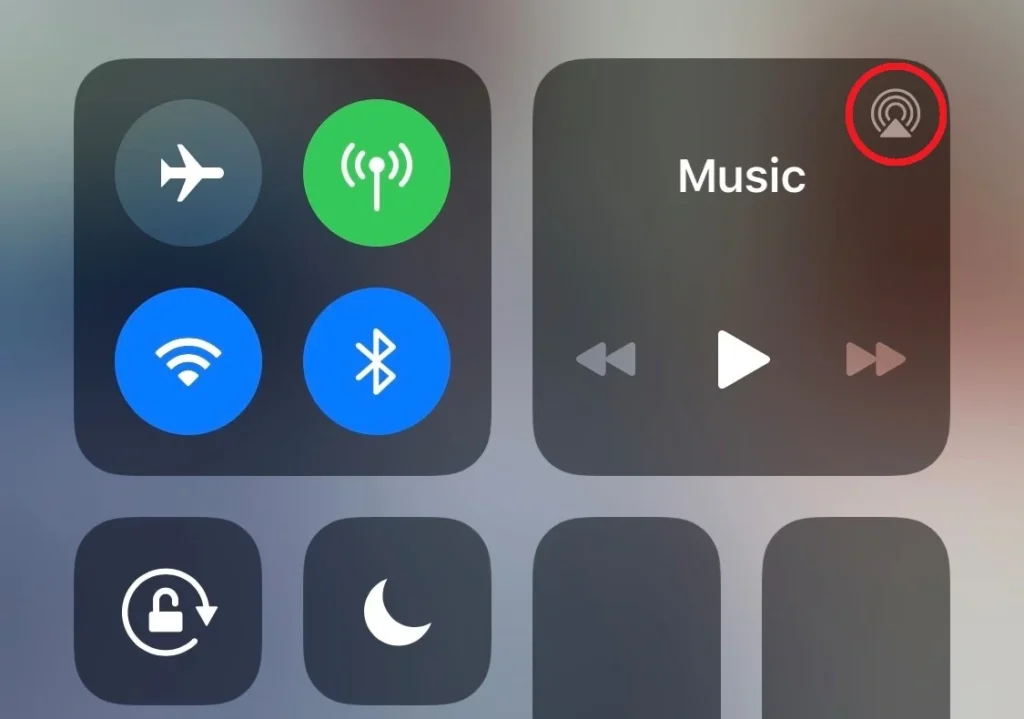
- Open Control Center and tap the AirPlay icon in the media playback box. Select “iPhone” as the output.
- Go to Settings > Bluetooth and turn it off temporarily.
- If you use wired accessories, unplug them and clean the port gently.
After disconnecting all devices, play a video or ringtone again to confirm whether sound returns through the built-in speaker.
Step 4: Restart or Force Restart the iPhone
A simple restart can often resolve temporary glitches or software bugs affecting audio.
To restart:
- Hold the power button (and volume button on newer models) until the slider appears.
- Slide to power off, then turn it back on.
If your screen is frozen or unresponsive, do a force restart:
- Quickly press and release the Volume Up button.
- Then Volume Down.
- Finally, hold the Power button until the Apple logo appears.
Check the speaker after restarting.
Step 5: Check Sound Settings and Audio Output
Your iPhone’s settings may have accidentally changed, which can mute or misdirect audio output.
Try the following:
- Go to Settings > Sounds & Haptics. Make sure the “Ringer and Alerts” slider is turned up.
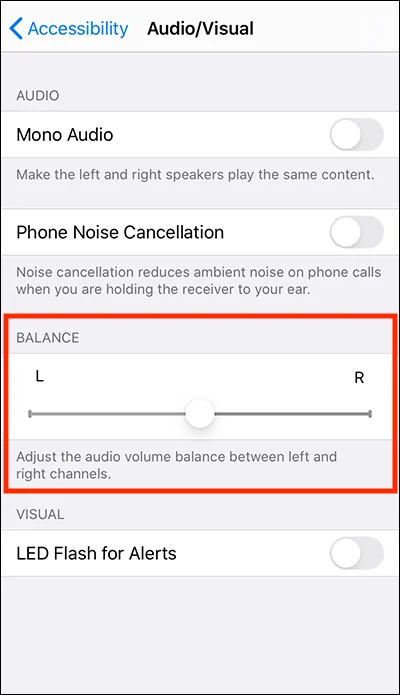
- Under Settings > Accessibility > Audio/Visual, ensure the “Balance” slider is centered.
- Turn off Mono Audio if it’s on, as it may cause audio issues with certain files or devices.
Also, test playback with different apps. Sometimes the problem is app-specific and not system-wide.
Step 6: Update or Reinstall iOS
Outdated or corrupted system software can affect speaker performance, especially after a failed update or app crash.
To check for updates:
- Go to Settings > General > Software Update.
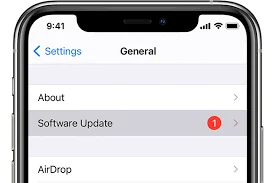
- If an update is available, download and install it.
If your iPhone is already up to date, but issues persist:
- Consider backing up your device.
- Then connect it to a computer and use Finder or iTunes to reinstall iOS without erasing data.
A fresh system install often resolves persistent audio bugs that updates alone can’t fix.
Step 7: Reset All Settings
If none of the previous steps worked, resetting all settings might help. This won’t erase your personal files or apps, but it will restore default system settings like network preferences, audio balance, and permissions.
It’s a good idea to back up your device before continuing, just in case.
Here’s how to do it:
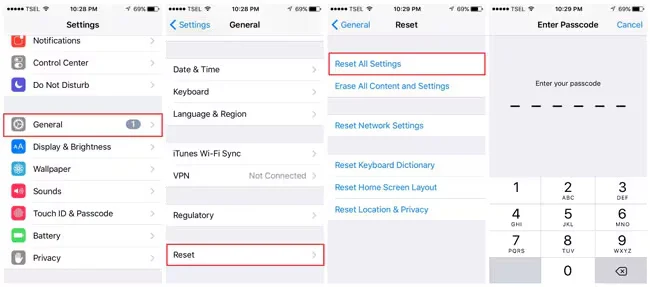
- Go to Settings > General > Transfer or Reset iPhone
- Tap Reset > Reset All Settings
- Enter your passcode when prompted
- Confirm the reset and let the device reboot
Afterwards, recheck your speaker to see if the issue is resolved.
Short Note: What If It’s the Earpiece Speaker?
If your iPhone speaker works for media but calls sound muffled or silent, the issue could be with the earpiece speaker. This is the small speaker used during phone calls when holding the device to your ear.
We’ve already published a full guide focused on fixing iPhone earpiece speaker issues. It covers cleaning, call tests, accessibility settings, and more. Be sure to check that article for a complete walkthrough.
When to Contact Apple Support or a Repair Service
If none of the above methods fix the issue, it may be a hardware problem. Your speaker might be damaged internally due to physical impact or moisture exposure.
Look out for these signs of hardware failure:
- The speaker sounds crackly or distorted
- No sound at all, even after resets
- Water damage or a history of drops
- The speaker doesn’t work during diagnostics
At this point, consider:
- Booking a Genius Bar appointment at an Apple Store
- Contacting Apple Support online or through the app
- Visiting a certified third-party repair shop
- Checking your warranty or AppleCare+ coverage
Getting a professional diagnosis can prevent further damage.
Conclusion
Your iPhone’s speaker is an essential part of your daily experience, so it’s frustrating when it stops working. Thankfully, many issues are software-related and easy to fix with some guided troubleshooting.
Start with the basics: check your settings, clean the speaker grill, and rule out audio redirection. For persistent issues, system resets or updates often help. And if it turns out to be hardware-related, you’ve got clear next steps.
With the right approach, you can usually restore sound without needing to replace your device.
