
The AirPods Max are known for their premium sound quality and intelligent features, including head detection. This function automatically pauses audio when you remove the headphones and resumes it when you put them back on. It’s a seamless experience until it stops working.
If you’ve noticed that your AirPods Max no longer pause or resume playback correctly, you’re not alone. Several users occasionally encounter this issue, and fortunately, most fixes are straightforward.
In this guide, we’ll break down what head detection does, why it can fail, and the steps you can take to get it working properly again.
What Is Head Detection and Why Does It Matter
Head detection on AirPods Max relies on built-in optical and position sensors that can detect when the headphones are on your head. When functioning properly, it allows for automatic pausing and resuming of audio, enhancing both user convenience and battery efficiency.
This feature minimizes the need to press buttons or manually pause music during interruptions. It also helps conserve battery by stopping playback when you’re not actively using the headphones.
While it may seem like a small thing, the automatic responsiveness becomes second nature, making it all the more noticeable when the feature suddenly stops working.
Common Reasons Head Detection Might Fail
Before tackling fixes, it’s helpful to understand what might be causing the issue. Many problems stem from small things that are easy to overlook.
- Dirty or Blocked Sensors: Dust, sweat, or skin oils can block the optical sensors and interfere with detection.
- Worn or Misaligned Ear Cushions: Loose or misaligned cushions may affect the sensor’s contact and accuracy.
- Outdated Firmware: Head detection may not function correctly if your AirPods Max firmware is behind.
- Bluetooth or Pairing Issues: Unstable connections can disrupt communication between the AirPods and your device.
- Disabled Head Detection Setting: The feature might have been turned off accidentally in Bluetooth settings.
Step-by-Step Solutions to Fix the Issue
If your AirPods Max head detection isn’t working properly, don’t worry. It’s often something you can resolve at home. The steps below cover both physical and software-related causes. You don’t need technical skills to try them; many users have succeeded with these methods.
Start with the easier solutions first, and work your way down the list if the problem persists.
Clean the Sensors Properly
The head detection feature uses optical sensors inside the ear cups. If these are dirty or blocked, the feature won’t function. Gently clean the inner surface of both ear cups with a soft, dry microfiber cloth. Avoid moisture or harsh cleaners.
Also, check for built-up dust, sweat, or skin oil that may interfere with sensor function. A clean surface helps the sensors detect proximity more reliably.
How To Clean Your Dirty AirPods Max
Check and Adjust Fit
The sensors might not register proper contact if the headphones sit too loosely or at an odd angle. Try repositioning the AirPods Max so the ear cups fully cover your ears.
Make sure the headband isn’t too loose, and verify that both ear cushions are secure and evenly aligned.
Ensure Head Detection Is Enabled
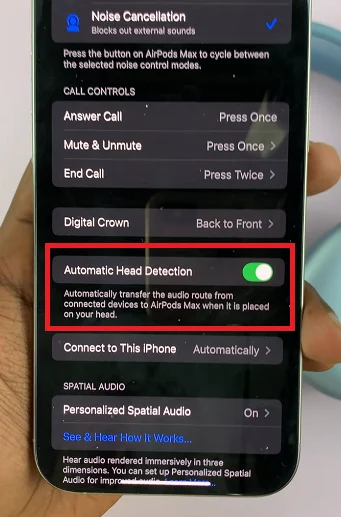
Sometimes the issue is just a setting that’s been toggled off. Go to Settings > Bluetooth on your iPhone or iPad. Tap the “i” icon next to your AirPods Max and check if Automatic Head Detection is enabled.
If it’s off, switch it back on. This single step can restore functionality immediately in some cases.
Restart and Reconnect AirPods Max
A simple restart can resolve many temporary issues. To do so, unpair your AirPods Max by forgetting them in your Bluetooth settings. Then restart your iPhone or iPad.
After rebooting, reconnect the headphones like you did the first time. It can help reestablish a stable connection and resolve minor bugs affecting head detection.
Update Your Device and AirPods Firmware
Outdated software can lead to sensor malfunctions. Make sure your iPhone or iPad is running the latest version of iOS.
While AirPods Max firmware updates automatically, keeping your device up to date helps prompt the latest version.
To check firmware, go to Settings > Bluetooth > “i” icon > About. If you’re unsure about your version, simply keep the AirPods connected and idle while charging overnight.
Test with Another Apple Device
To rule out device-specific issues, try connecting your AirPods Max to another iPhone or iPad.
If head detection works on the second device, the problem likely lies with your original phone’s software or settings. If the issue continues, it’s more likely to be with the headphones themselves.
Reset AirPods Max to Factory Settings
As a last resort, reset your AirPods Max. Press and hold the noise control button and the Digital Crown together for about 15 seconds until the LED flashes amber, followed by white.
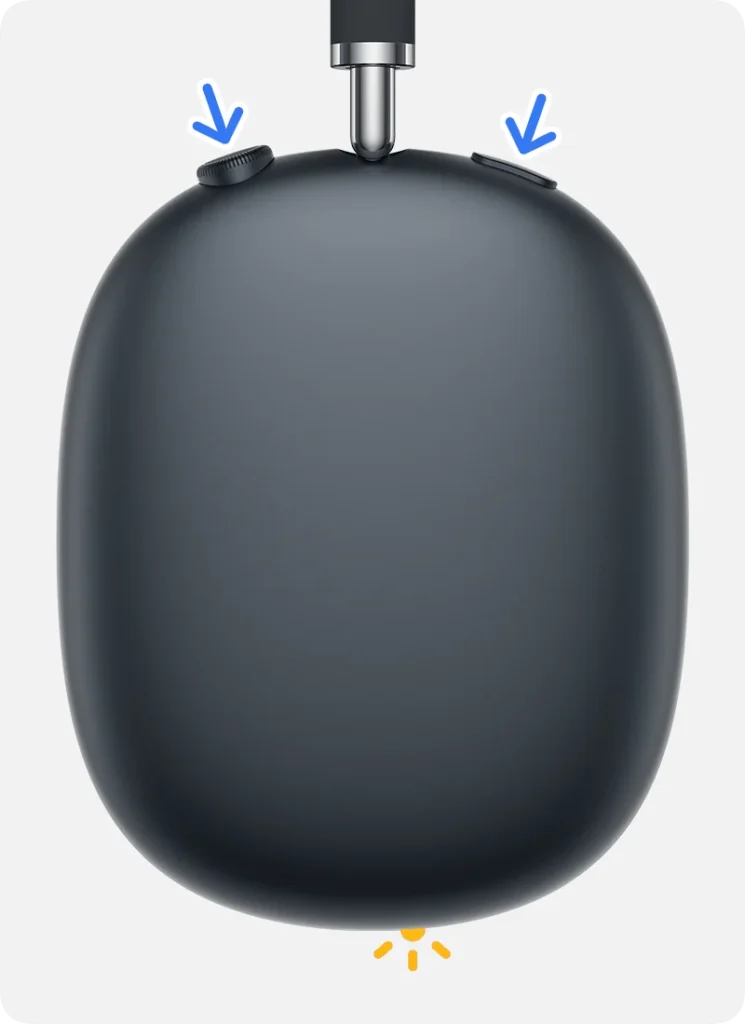
This will restore the headphones to factory settings. You’ll need to pair them again from scratch.
You should only do this after trying all other methods, as it erases all custom configurations. However, it can solve deep firmware bugs or persistent connection problems that interfere with features like head detection.
When to Contact Apple Support
If you’ve tried every troubleshooting step and head detection still isn’t working, it may indicate a hardware issue. In that case, contacting Apple Support is your best option.

They can run diagnostics, offer repair or replacement, and ensure your AirPods Max are functioning as intended without further guesswork.
Conclusion
Head detection is a small but powerful feature that enhances the way you use your AirPods Max. When it fails, it can be frustrating, but it’s usually fixable.
With a few careful steps, you can restore this functionality and enjoy a seamless listening experience again. And if not, Apple is there to help.
