
Getting stuck in headphone mode on a Samsung phone can be surprisingly frustrating. You unplug your headphones, but your phone still thinks they’re connected, leaving the speakers mute and your calls or media silent.
This issue is more common than you might think and usually stems from something minor, like dirt in the port or a temporary software glitch. Thankfully, you often don’t need to visit a service center to fix it.
In this guide, we’ll walk you through easy-to-follow steps, from basic checks to more advanced methods, to get your sound working again. Whether the problem is caused by moisture, dust, or a buggy update, this guide will help you sort it out with minimal fuss.
What Causes a Phone to Get Stuck in Headphone Mode?
Before diving into fixes, it’s helpful to understand why this happens. In most cases, it’s not due to hardware damage and can be fixed at home.
Common causes include:
- Dust or Debris Inside the Headphone Jack or USB-C Port: Tiny particles can trick your phone into thinking something’s plugged in.
- Water or Moisture Exposure: Sweat, rain, or humidity may trigger headphone mode even without visible signs.
- Frequent Switching Between Wired and Wireless Audio Devices: This can temporarily confuse your phone’s audio routing.
- Software Glitches or Recent Updates: Occasionally, an app crash or OS update can mess with the audio detection system.
- Using Incompatible or Faulty Headphones/Adapters: Especially if they’re not made for Samsung or are damaged.

Luckily, most of these issues are fixable with a few simple steps. You don’t usually need professional help unless the hardware itself is faulty.
Basic Checks and Quick Fixes
Start with the simplest solutions first. These quick checks often resolve the problem in minutes.
Plug and Unplug Headphones Repeatedly
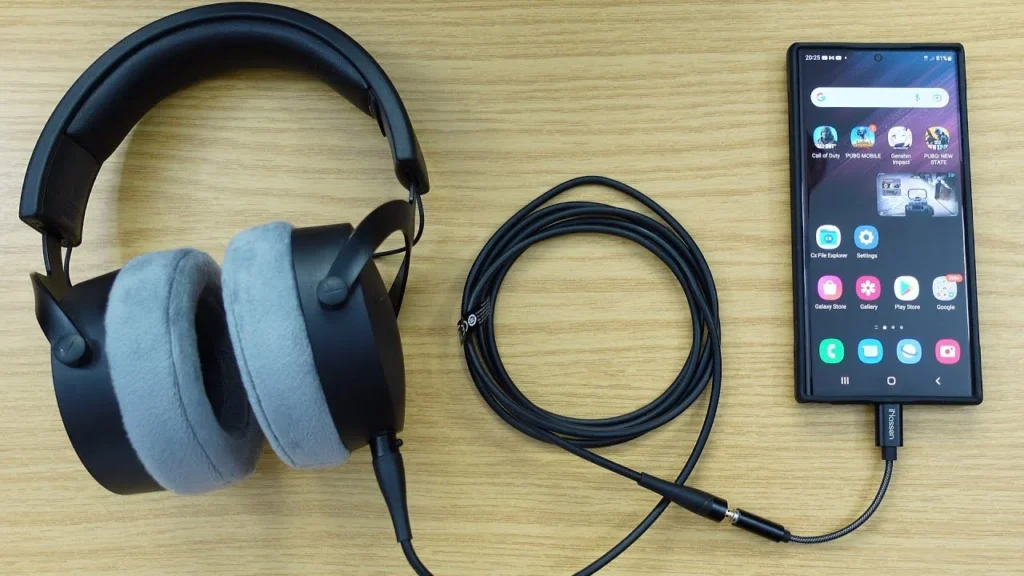
Try plugging in your headphones (or USB-C adapter) and unplugging them 2–3 times. It can jolt the system into resetting its audio output.
Restart Your Phone
A restart clears temporary bugs and refreshes hardware detection. Hold the Power button, then tap “Restart.” After rebooting, check if the headphone icon is gone.
Toggle Airplane Mode
Switch Airplane mode on, wait 10 seconds, and turn it off. It resets all connections and may help fix audio routing glitches.
Adjust Sound Settings
Head to Settings > Sounds and Vibration. Make sure your sound profile isn’t stuck or muted. You can also toggle between sound, vibrate, and mute to nudge the system.
Try Safe Mode
Boot into Safe Mode by holding the Power button, then long-pressing “Power Off.” This disables third-party apps, which helps rule out app conflicts.
These basic steps are a good starting point. If they don’t work, you can move on to cleaning and system-level fixes.
Clean the Headphone Jack or USB-C Port
If your Samsung phone still thinks headphones are plugged in, it might be due to dirt or lint stuck inside the port. Even tiny debris can interfere with audio detection. Cleaning it carefully is a smart next step.
Tools you can use:
- A flashlight
- Wooden toothpick or plastic SIM ejector tool
- Soft brush or cotton swab
- Can of compressed air (optional)
- Isopropyl alcohol (optional and only in tiny amounts)
Steps to clean the port:
- Power off your phone completely.
- Shine a light into the headphone jack or USB-C port.
- Gently remove any visible lint or dirt using a toothpick or soft brush.
- If using compressed air, spray short controlled bursts. Don’t shake the can.
- For sticky gunk, lightly dab a cotton swab in isopropyl alcohol and gently clean the area.
- Let the port air-dry for a few minutes.
Avoid using anything metallic, and never force tools into the port.
How To Clean Headphone Jack on Phone (Android/iPhone) | Clean Aux Port Easily
If moisture is present or suspected, avoid charging the phone and allow it to dry using silica gel or a dry, rice-free environment. Once the port is clean and dry, reboot your device and check if the issue is resolved.
Use the Samsung Members App for Diagnosis
Samsung includes a helpful diagnostic tool within the Samsung Members app. If your phone still shows the headphone icon, this app can help you confirm whether the system is incorrectly detecting a connected device.
Open Samsung Members > Support > Phone Diagnostics and run the Speaker or Earphone test. It will show whether the phone currently detects headphones, even if none are plugged in.
This tool is also handy for gathering evidence before contacting support or visiting a service center. If the app detects a problem, it may prompt you to book a repair or immediately offer a recommended fix.
Check for Water or Moisture Warnings
Samsung devices are smart enough to detect moisture in the charging or headphone port and will sometimes trigger headphone mode to protect internal circuits. Sound output might be restricted if moisture is detected, even if no water is visible.
You may see a moisture detection warning. In this case:
- Wipe the phone gently with a dry cloth.
- Let it sit in a dry, cool place (not under a fan or sun).
- You can place it near silica gel packets for better drying.
- Avoid using rice. It can introduce more dust.
Do not plug in a charger or headphones until the warning disappears.
Reset App Preferences or Settings
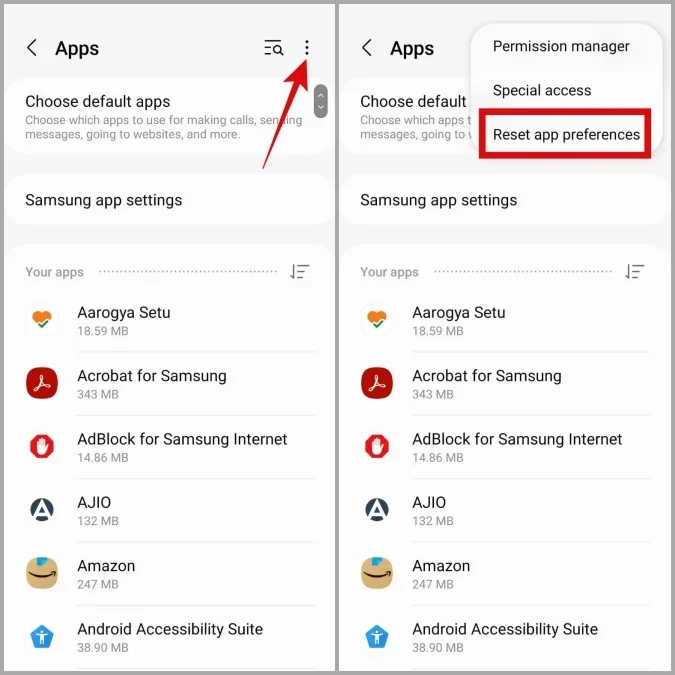
Sometimes, the problem is caused by misconfigured app settings or disabled system apps. Resetting app preferences won’t delete your data. It just restores default permissions and background limits.
To do this:
- Go to Settings > Apps
- Tap the three-dot menu in the top right corner
- Select Reset app preferences
- Confirm when prompted
This action re-enables any essential services that may have been turned off, including the ones handling audio routing.
Additionally, consider resetting general system settings:
- Navigate to Settings > General Management > Reset
- Choose Reset settings (not factory reset)
This won’t delete your photos or apps but will reset Wi-Fi, Bluetooth, and personalization preferences to default.
After applying these resets, restart your phone and check the audio again. If the headphone icon disappears and sound returns to the speaker, you’ve resolved the issue without a full wipe.
Update Software or Clear Cache Partition
Outdated software or a corrupted system cache can lead to audio detection bugs. Keeping your phone updated is essential.
To update:
- Go to Settings > Software Update > Download and Install
- Follow prompts to install if available
If your software is current but the issue persists, try clearing the cache partition:
- Power off the device
- Hold Power + Volume Up until the recovery screen appears
- Use the volume buttons to highlight Wipe Cache Partition
- Confirm using the Power button
It won’t delete your files and often resolves minor glitches without affecting personal data.
After clearing the cache, reboot the device and test the sound again.
Perform a Factory Reset (Last Resort)
If nothing else has worked, a factory reset might be necessary. This step erases all your data and returns your device to its original state.
Before resetting:
- Backup important files and photos
- Ensure you know your Samsung account credentials
To reset:
- Go to Settings > General Management > Reset
- Tap Factory Data Reset, then follow the on-screen steps
Once complete, your phone will reboot and be fresh. You can then test the speaker before restoring apps. If the headphone issue is gone, something in the previous setup was likely causing the conflict.
Only use this method if all other steps fail.
When to Seek Professional Repair
If none of the solutions worked, it’s possible the problem lies in the hardware, especially if your phone has been damaged by a fall or water.
Visit a certified Samsung service center or an authorized technician. They can check for:
- Damaged audio circuits
- Port issues
- Malfunctioning sensors or boards
Avoid trying DIY repairs unless you’re experienced with phone hardware. A technician can safely diagnose and fix the root cause and may even cover it under warranty if applicable.
Conclusion
A Samsung phone stuck in headphone mode can be annoying, but the good news is that most cases are fixable without a repair shop. Start with simple restarts and clean the port before moving on to system-level resets and updates.
Each method we’ve shared is designed to tackle a different cause, whether it’s dirt, a glitch, or a misconfiguration. Take your time, follow the steps, and you’re likely to find a fix that works.
If all else fails, don’t hesitate to contact Samsung support. A quick repair could prevent bigger sound issues later on.
