
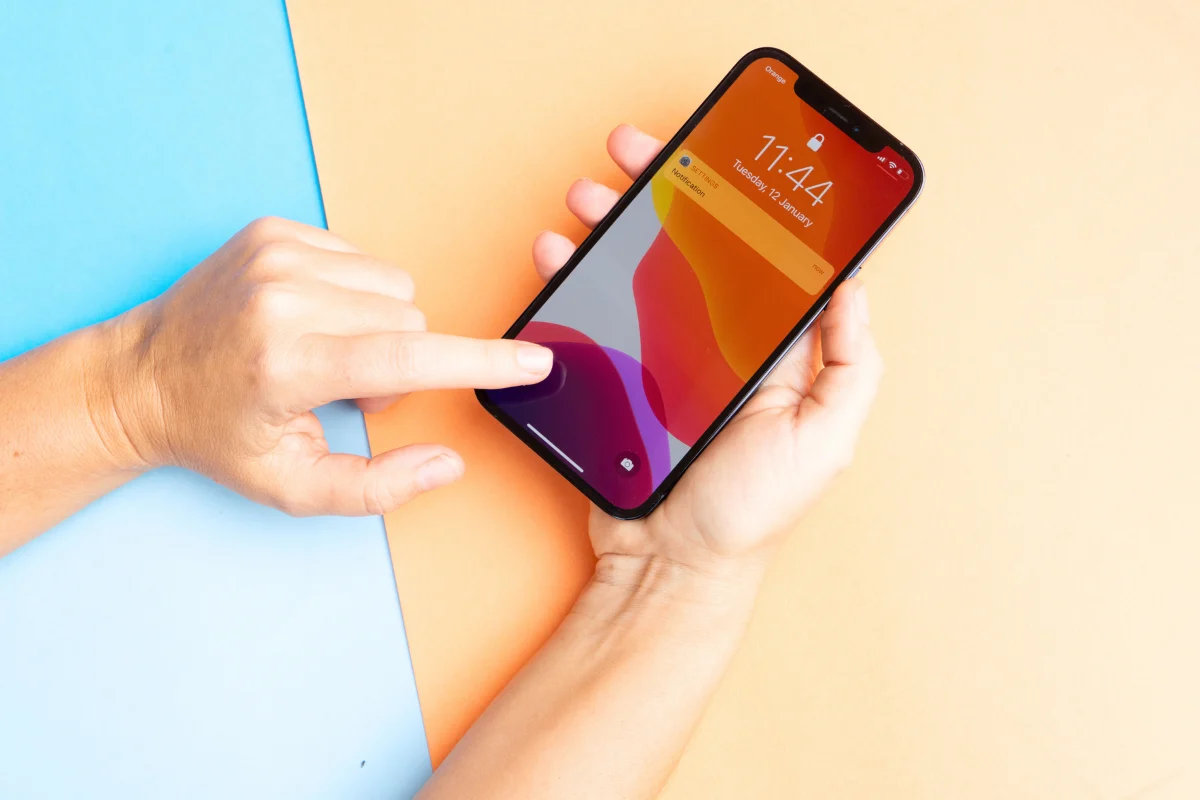
If your iPhone sounds muffled during calls, music playback, or videos, you’re not alone. Many users experience reduced sound clarity that makes everything seem distant or unclear.
This issue can be annoying, especially when you’re trying to catch a quick phone call or enjoy a podcast.
Thankfully, most causes of muffled sound are minor and can be fixed without needing professional repair. Whether it’s a software glitch, a settings issue, or some lint caught in the speaker, this guide will walk you through each possibility.
We’ll also go over signs to watch for, why this happens, and simple step-by-step solutions. By the end, you’ll know exactly what to check and how to get your iPhone sounding crisp and clear again.
Common Symptoms of Muffled Sound
Before diving into solutions, it’s important to confirm that you’re actually dealing with muffled sound and not another audio issue. Here are some signs that point to a muffling problem:
- Audio sounds distant or echoey during calls or videos
- Maximum volume still feels unusually low
- Speakerphone is slightly clearer than regular mode
- Headphones sound fine, but internal speakers don’t
- The sound cuts in and out when you move the phone
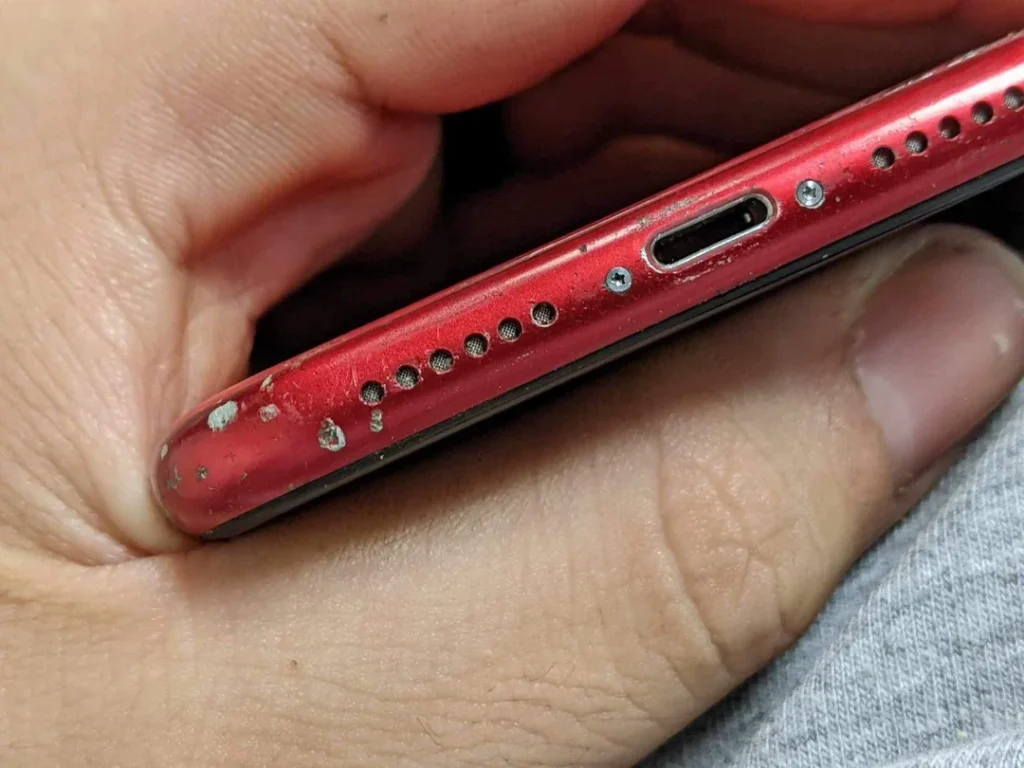
If you’ve noticed one or more of these symptoms, you’re likely facing a muffled sound issue. This could be due to something as simple as dust, a case obstructing the speaker, or a software setting misbehaving. Let’s explore the most common causes next.
Possible Causes of Muffled iPhone Audio
Several things can lead to a muffled sound on your iPhone. Most of them are easy to check and fix. Let’s break them down into hardware and software causes.
Hardware-Related Causes
- Dust, Lint, or Debris in the Speaker Grill: This is one of the most common culprits. A clogged speaker port can block sound waves and distort clarity.
- Moisture Exposure: Even light water splashes can affect the audio output, making it seem dampened.
- Phone Cases or Screen Protectors: Some accessories unintentionally cover speaker areas, affecting sound flow.
If your phone looks fine physically but still sounds off, the issue might be software-based.
Software-Related Causes
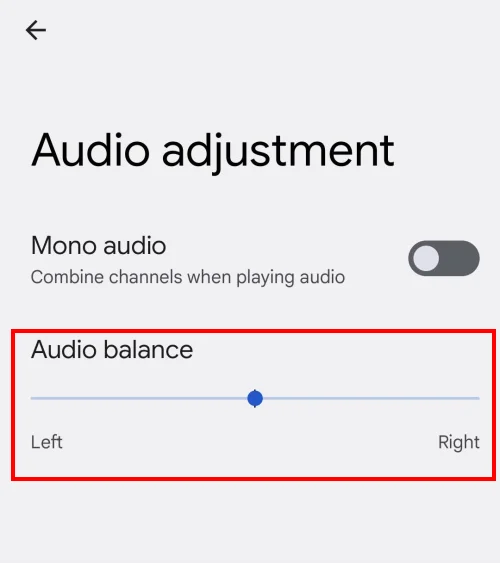
- Audio Balance or Mono Settings: In the Accessibility section, specific settings can mute one side or reduce overall clarity.
- Bluetooth Routing Issues: Your iPhone may still be connected to a Bluetooth speaker or headphones, even if you’re not using them.
- iOS Bugs or Temporary Glitches: A recent update or crash might disrupt the audio pathway. Restarting often helps.
- Third-Party Apps: Some music or video apps apply filters or sound compression that make audio sound flatter or muffled.
Now that you know the likely causes, let’s get into fixing them, step by step.
Step-by-Step Fixes for Muffled Sound
Now that you’ve identified potential causes, it’s time to troubleshoot. Try the following solutions one at a time, starting with the easiest fixes. Most users find success before reaching the final steps. These methods cover both hardware and software angles to help restore clear sound.
Clean the Speaker and Microphone Areas
Start by inspecting your iPhone’s speaker and microphone ports. Dirt, dust, or lint can easily build up in these ports, especially if you keep your phone in a pocket or bag.
Use a soft-bristled toothbrush, a cotton swab, or a small piece of tape to gently lift away debris. Avoid using metal objects or compressed air, which may damage internal components.
How to Properly Clean Your iPhone Speakers /Mic & Lightning Port
You can also shine a flashlight to check for gunk deeper in the grill. For stubborn grime, a small amount of rubbing alcohol on a microfiber cloth can help. Be gentle, and let the area dry fully before testing the sound again.
Remove or Adjust Your Phone Case
Some phone cases (particularly rugged or waterproof ones) can partially cover speaker openings, causing sound to become muffled or distorted.
Take off your case completely and test the audio. Consider switching to a case with proper cutouts around the speaker grill if the sound improves. Similarly, check if your screen protector has slid out of place and is covering the earpiece area.
It might seem minor, but even a thin layer of plastic or adhesive can impact audio clarity.
Check and Turn Off Bluetooth Devices
If your iPhone is connected to Bluetooth audio (even when idle), sound may be routed to another device you’re not currently using.
Swipe down to access the Control Center, then tap the AirPlay icon to see where audio is being sent. Disconnect if it lists a speaker, headphones, or car system.
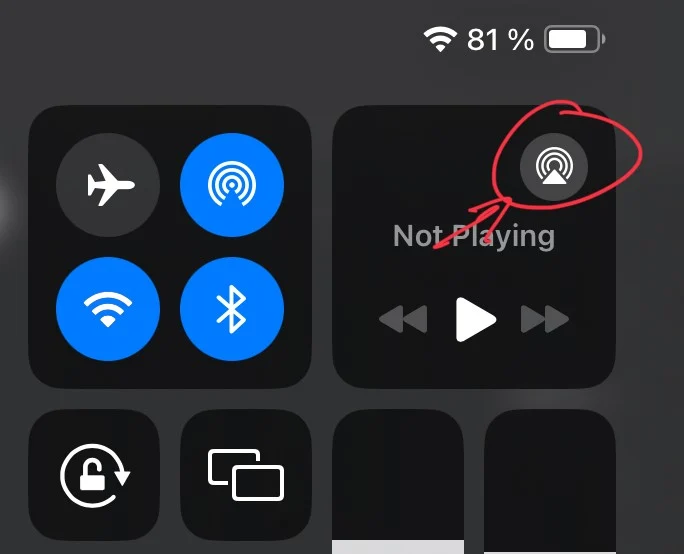
You can also turn off Bluetooth entirely from Settings or the Control Center. Once disconnected, play music or a video to test if your iPhone’s built-in speaker now works as expected. This quick check often solves sound confusion instantly.
Restart Your iPhone
Sometimes, a simple reboot is all your iPhone needs to correct minor glitches that interfere with audio output.
Press and hold the power button (and volume button on Face ID models) for a few seconds, then slide to power off. After a few seconds, turn your iPhone back on.
Once it reboots, play a song or make a test call. Restarting clears temporary bugs, and it’s a good habit before diving into deeper fixes.
Inspect Sound Settings and Accessibility Features
Go to Settings > Accessibility > Audio/Visual. Check if “Mono Audio” is enabled. It combines both audio channels and might distort clarity. Turn it off unless you specifically need it.
Next, look at the “Balance” slider. Make sure it’s centered between the left and right channels. If it’s too far in one direction, it could make one speaker seem weaker or muffled.
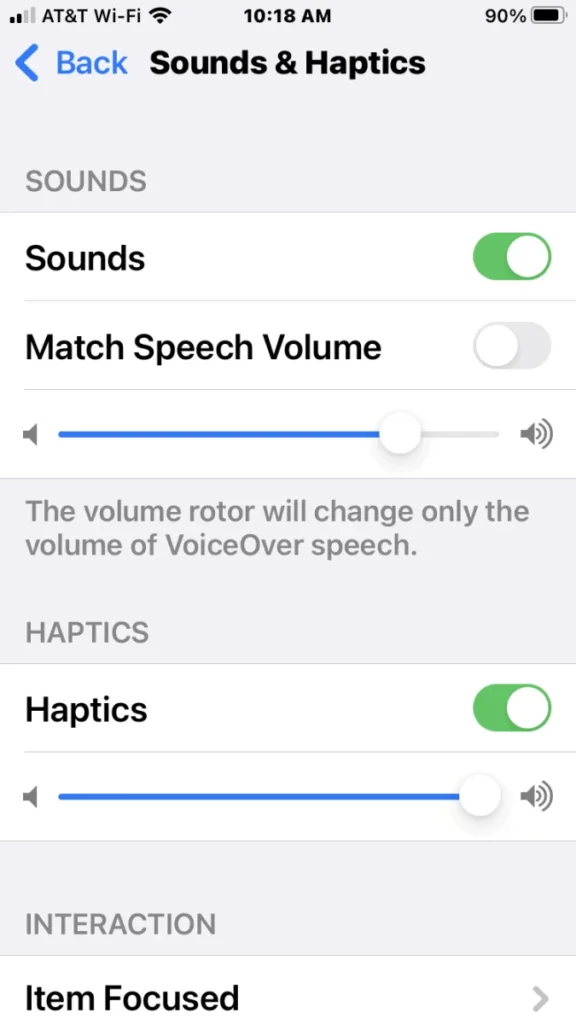
Also, under Settings > Sounds & Haptics, make sure the volume is turned up. Toggle “Change with Buttons” on if you prefer adjusting sound via side buttons. Misconfigured settings like these often go unnoticed but greatly affect audio.
Try Safe Mode or Reset All Settings
Although iPhones don’t have a literal “Safe Mode,” you can try resetting all settings to eliminate system misconfigurations.
Go to Settings > General > Transfer or Reset iPhone > Reset > Reset All Settings. This will erase preferences like Wi-Fi passwords and custom configurations, but won’t delete your data or apps.
How to Reset iPhone to Factory Settings
This step is helpful if you’ve recently updated iOS or installed apps that may have tweaked audio behaviors in the background. After the reset, recheck the speaker with a voice memo or video. This process usually resolves software quirks without needing a full factory reset.
Update iOS
Running outdated iOS versions can sometimes lead to glitches, including sound distortion or malfunctioning speakers.
To check for updates, go to Settings > General > Software Update. If an update is available, install it. Make sure your device is charged or plugged in during the update.
Apple often patches bugs related to sound, Bluetooth, and performance in regular updates. Keeping your iPhone’s software up to date ensures you’re using the most stable version with fewer audio hiccups.
Test with Voice Memos and Calls
To check whether the speaker is physically working, open the Voice Memos app and record a short clip. Then play it back and listen closely.
Also, try making a phone call; use both normal and speakerphone modes. If you hear fine in one mode but not the other, it points to a specific speaker issue.
This test helps isolate whether it’s a hardware problem or a software conflict affecting audio routing.
Restore via iTunes or Finder
If none of the above steps help, consider doing a full restore through iTunes (Windows) or Finder (Mac). Back up your data first.
This deep reset reinstalls iOS completely, eliminating stubborn bugs. Use it only after other fixes have failed, and if you’re not ready for professional service yet. A clean install can resolve deeper system-level problems affecting audio.
When to Seek Professional Help
If you’ve tried all the DIY fixes and your iPhone still sounds muffled, it might be time to consult a technician. Persistent issues could point to a damaged speaker, microphone, or internal component that needs expert attention.
Especially if your iPhone was recently dropped or exposed to moisture, internal hardware might be affected even if the device looks fine.
Visit an Apple Store or an authorized service provider to get a professional diagnosis. They can run hardware tests and offer repair or replacement options if necessary, often covered if you’re still within warranty or AppleCare.
Tips to Prevent Muffled Audio in the Future
A few habits can help you avoid audio problems down the line. Keep these in mind:
- Avoid storing your iPhone in lint-heavy pockets or bags
- Regularly wipe the speaker and mic areas with a microfiber cloth
- Don’t use harsh cleaners or water on the speaker grill
- Remove phone cases occasionally and clean around the edges
- Update your iPhone software regularly to stay ahead of bugs
Good maintenance now can prevent frustrating audio issues later.
Conclusion
Muffled audio on your iPhone can be frustrating, but in most cases, it’s fixable without professional repair.
Whether it’s dust in the speaker grill, a setting gone wrong, or a software glitch, this guide has walked you through the most likely causes and how to address them step by step.
Start with the basics and work your way down the list. You’ll often find the fix is simpler than you expected. And if all else fails, reaching out to Apple support is your best next move. Clear, crisp sound is just a few taps (or swipes) away.
