
Ever notice that soft click your iPhone makes when you lock the screen? That’s the lock sound; a subtle audio cue that tells you the device is secured. While a small detail, it can help create a more responsive feel when using your phone.
This sound might be off by default if you’ve just bought a new iPhone or updated your iOS. Turning it back on is quick and easy once you know where to look. Whether you prefer a bit of feedback or simply want to know your screen’s locked, this guide has you covered.
What Is iPhone Lock Sound?
The lock sound is a short, soft click that plays when you press the side button to lock your iPhone screen. It doesn’t affect performance or privacy. It’s purely a sound effect to let you know the device is now idle.
This audio cue is part of your phone’s system sounds. Along with keyboard clicks and typing haptics, it adds a layer of feedback that helps make interactions feel more natural. You might not miss it until it’s gone, but once it’s back, your phone might feel more satisfying to use again.
How to Turn on Lock Sound on iPhone (iOS 16 or later)
Enabling lock sound is simple and takes just a few taps. Follow the steps below:
- Open the Settings app.
- Scroll down and tap Sounds & Haptics.
- Scroll to the bottom of the screen.
- Toggle Lock Sound to the ON position (green).
Once enabled, your iPhone will make a soft click each time you press the side button to lock the screen.
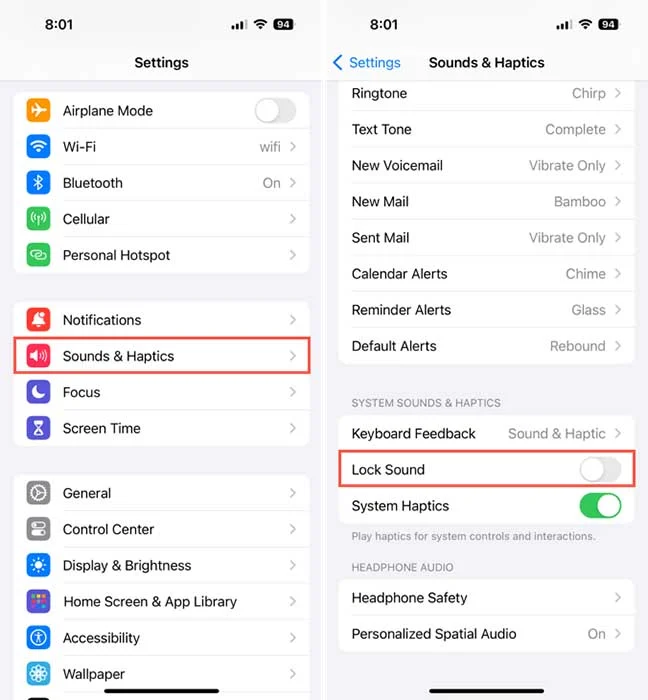
You can also use Control Center as a quick alternative. If you have silent mode toggled via the bell icon, the lock sound won’t play even if it’s turned on in settings.
Swipe down from the top right (on Face ID models) or up from the bottom (on Touch ID models) to check if Silent Mode is active.
If the lock sound still isn’t working, here are a few quick things to check:
- The mute switch on the side of your iPhone is set to ON.
- System volume is turned all the way down.
- Focus modes like Do Not Disturb are enabled.
Turning the lock sound back on takes less than a minute, but it might make your iPhone feel a bit more complete.
How to Turn on Lock Sound on iPhones with iOS 15 or Earlier
If you’re using an older iPhone or haven’t updated to iOS 16 yet, the steps to enable lock sound are slightly different, but still simple. Apple has kept the process intuitive across versions.
Here’s how to do it:
- Open the Settings app.
- Tap on Sounds & Haptics (or just Sounds on some older models).
- Scroll down and find Lock Sound.
- Toggle the switch to turn it ON.
After enabling it, your iPhone will play the familiar click when you lock the screen.
Remember, just like on newer iOS versions, Silent Mode will override this setting. If you want to hear the lock sound consistently, make sure your mute switch (located on the left side of the device) is turned off.
This tiny sound cue can feel surprisingly helpful, especially if you often lock your screen without looking at it.
Common Reasons Lock Sound Might Not Work
If you’ve followed the steps but still don’t hear anything when locking your iPhone, don’t worry. It’s usually one of a few simple things that can be fixed right away.
Here are the most common causes:
- Mute Switch Is on – Located on the side of your iPhone.
- Volume Is Too Low – Lock sound uses system volume.
- Do Not Disturb or Focus Mode – These can suppress system sounds.
- Bluetooth Headphones Connected – Sound may route through them instead.
- Software Glitch – Sometimes, a quick restart solves the issue.
Try adjusting these settings first before assuming something’s wrong with the speaker. Often, it’s just one overlooked toggle.
Extra Tip: Customizing Other System Sounds
If you’re the type who likes complete control over how your iPhone feels and sounds, you’ll be glad to know there are more system sound settings you can tweak beyond the lock sound. These can make everyday actions more tactile and responsive.
Here are a few settings worth checking out:
- Keyboard Clicks – Enable or disable sound feedback when typing.
- System Haptics – Control vibration feedback for taps, switches, and other gestures.
- Ringtone and Text Tone – Personalize call and notification sounds for a more unique vibe.
- Vibration Patterns – Set custom vibration styles for calls or alerts.
- Touch Feedback in Accessibility – Fine-tune haptic strength or disable entirely for comfort.
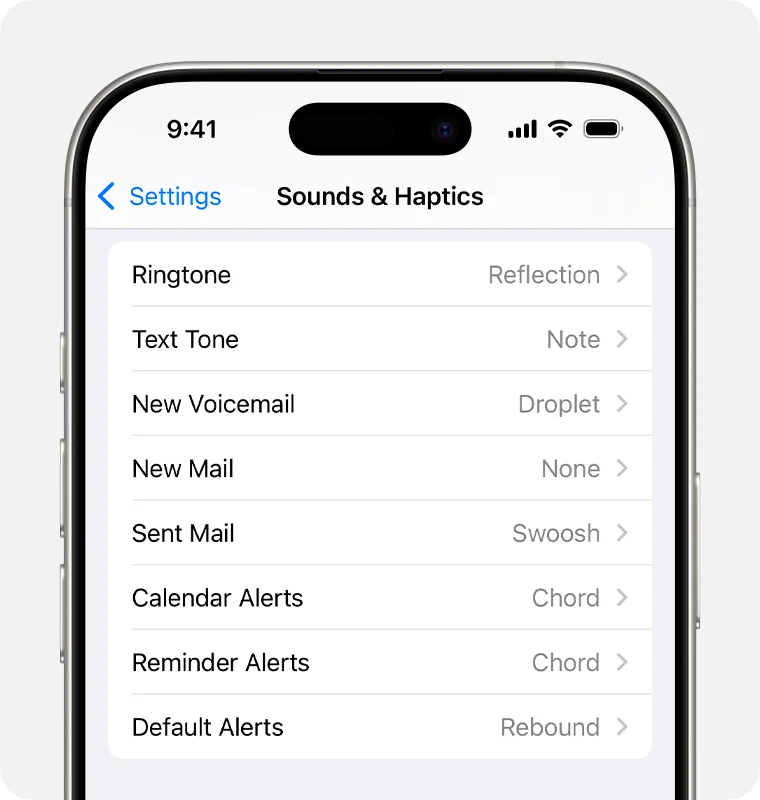
All of these options live under Settings > Sounds & Haptics, letting you shape how your phone responds to your touch.
When You Might Want to Turn Lock Sound Off
While a lock sound can be helpful, there are moments when silence is golden. Even a small click can feel disruptive in quiet environments like meetings, libraries, or late at night.
If you prefer a silent, discreet phone experience, turning off the lock sound might be the way to go.
Conclusion
The lock sound on your iPhone is a subtle yet useful feature that adds a bit of tactile feedback to your daily phone use. Whether you want that satisfying click or prefer a silent lock, the choice is entirely yours.
Now that you know how to enable or disable it, take a minute to explore your other sound settings and make your iPhone truly yours.
