
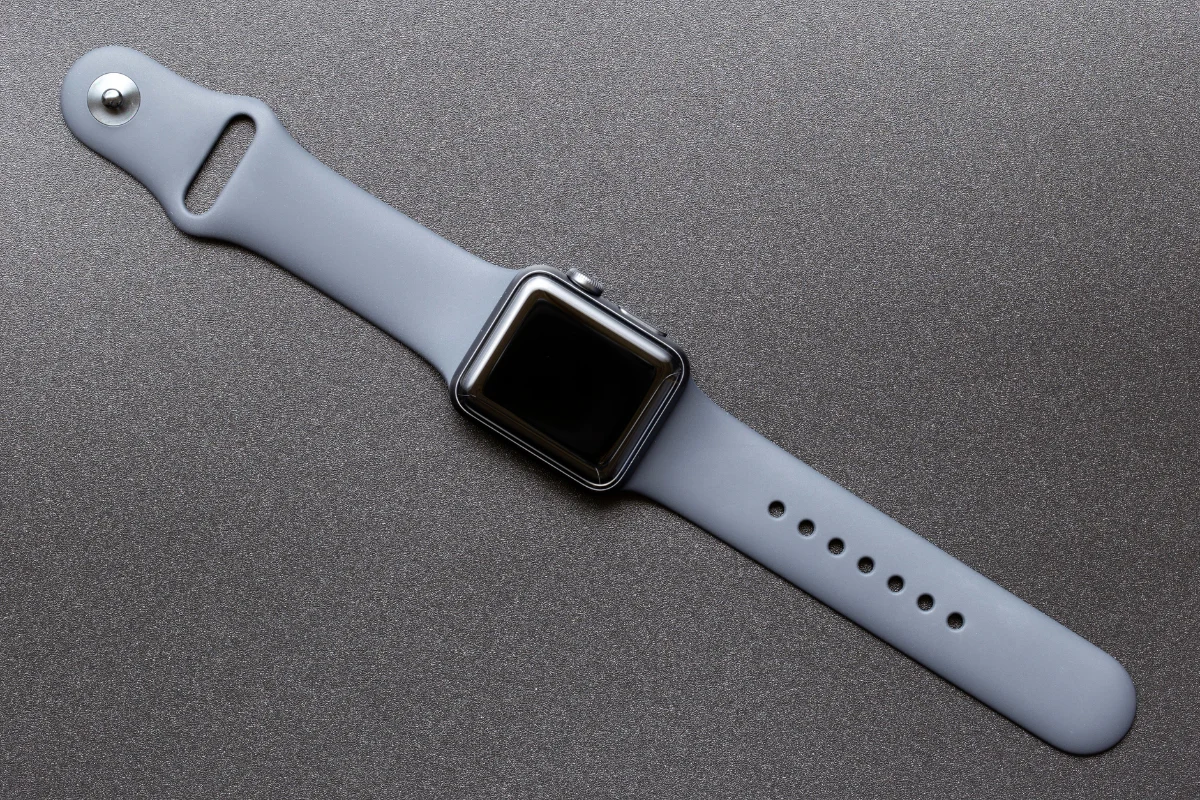
The Apple Watch is built to handle your everyday routines, including some wet and splashy ones. Whether you’re swimming, showering, or running in the rain, Water Lock mode can help protect your device.
It’s a simple yet powerful feature designed to prevent accidental screen taps and assist with removing water from the speaker after exposure.
Activating Water Mode not only helps with functionality but also extends the durability of your Apple Watch by ensuring water doesn’t interfere with touch sensitivity or audio.
In this guide, you’ll learn exactly what Water Lock is, when to use it, and how to activate it in seconds. It’s quick and easy, and it will keep your watch running smoothly, even in the wettest conditions.
What Is Water Lock Mode on Apple Watch?
Water Lock Mode is a protective feature available on Apple Watch Series 2 and later. When turned on, it disables the touch screen so water droplets don’t accidentally trigger actions. This is especially useful during activities like swimming or showering.
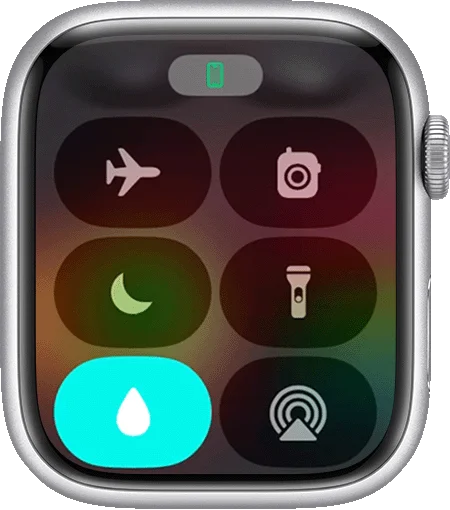
Once Water Lock is enabled, you’ll see a small water droplet icon appear at the top of your screen. It tells you that the watch is now in protected mode. It remains functional, but the touch interface is temporarily locked until you turn the mode off.
After your activity, Water Lock also plays a quick sound through the speaker that helps eject any water that may have entered.
This process improves audio clarity and ensures long-term speaker performance. It’s a handy built-in safety net for those who lead an active, water-friendly lifestyle.
When and Why to Use Water Mode
Water Lock is ideal for situations where your Apple Watch is exposed to water. It includes swimming, water aerobics, rainy jogs, or even quick showers.
Although your watch is water-resistant, Water Lock helps maintain usability by preventing unintentional taps.
It also ensures that your speaker continues working properly by clearing out water after the activity. Using it as a habit protects both your hardware and your user experience.
How to Turn On Water Mode (Step-by-Step)
Activating Water Lock on your Apple Watch is straightforward. You can turn it on manually or let the device enable it automatically during certain workouts. Here’s how to do it yourself:
- Swipe up from the bottom of your watch face to open the Control Center
- Tap the water droplet icon
- You’ll see a confirmation with the same droplet icon at the top of your screen, indicating Water Lock is active
- The screen will no longer respond to touch input until Water Lock is turned off
This feature activates automatically when you start a Swim workout from the Workout app. You won’t need to turn it on yourself in that case.
To confirm it’s working, look for the droplet icon on your watch face. The lack of screen response to touch also means the feature is doing its job. It’s a reliable way to prevent accidental taps and ensure the speaker is ready to be cleared of water once you’re done.
How to Turn Off Water Mode and Eject Water (Step-by-Step)
Once you’re done with your water activity, turning off Water Lock is just as easy as turning it on. Doing so also triggers the built-in water-ejection system that pushes out any moisture from the speaker.
Follow these steps:
- Press and hold the Digital Crown (the round button on the side of your watch)
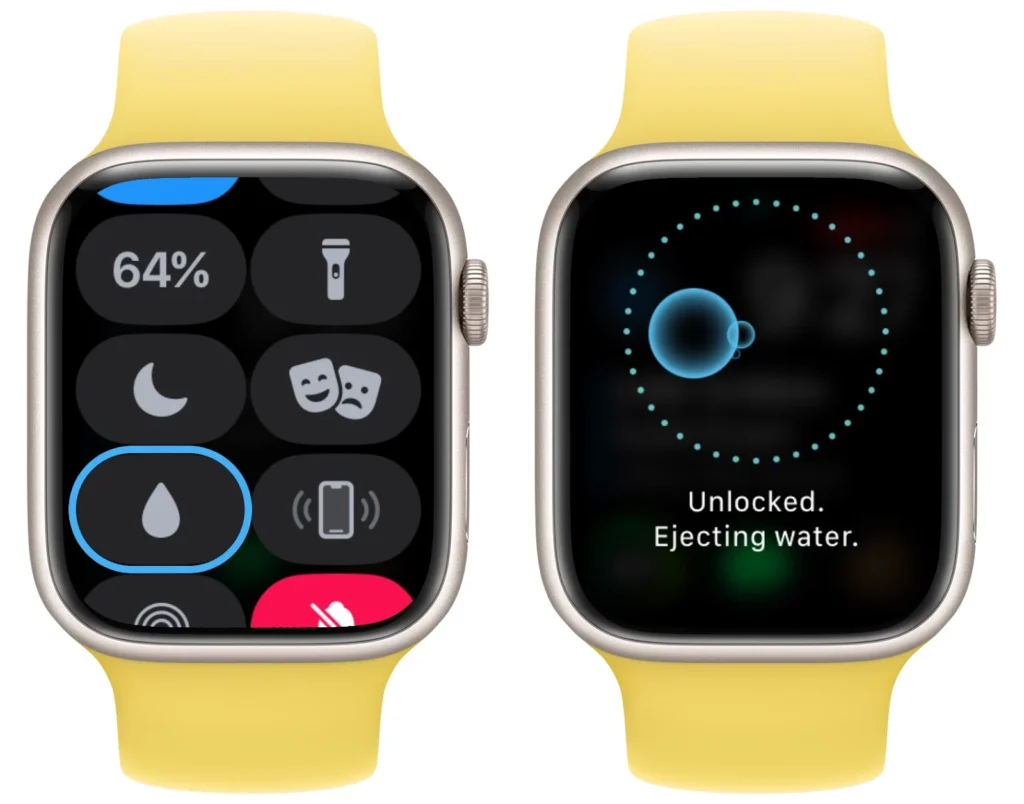
- Keep holding until you see the message “Unlocked” and feel a gentle vibration
- You’ll also hear a quick series of sounds as water is ejected from the speaker grill
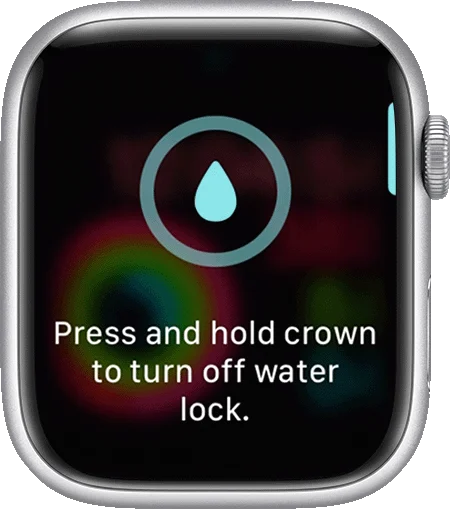
Previously, you would need to turn the digital crown to turn off Water Lock and eject water. However, Apple has now changed the system to a ‘press and hold’ method. Some do prefer the previous method still.
Anyway, the entire process takes just a few seconds and doesn’t harm your watch. Once complete, your screen will respond to touch again, and your speaker will be much clearer.
Tips for Using Water Lock Effectively
To get the most out of Water Lock, here are a few helpful tips:
- Activate Before Exposure: Always turn it on before entering water. It ensures the screen is already protected.
- Avoid Other Buttons: Try not to press the side button or crown while submerged to prevent false actions.
- Clean the Watch Afterward: Once it’s dry, wipe the watch gently with a soft cloth to remove any leftover droplets.
- Use for Sweaty Workouts Too: Water Lock is not just for swimming. Intense sweat can also affect screen taps, so it helps there, too.
- Double Check Icon: Look for the droplet symbol to confirm it’s activated, especially before diving in.
What Happens If You Forget to Turn It On?
If you forget to activate Water Lock, your Apple Watch will still resist water to a degree thanks to its hardware protection. However, droplets can trigger accidental taps, and the speaker may sound muffled afterward.
Luckily, you can manually enable and disable Water Lock post-activity to use the water-ejection feature. It’s not harmful if you miss it, but it may slightly impact usability until dried out.
Water Lock vs. Water Resistance: Know the Difference
Water Lock is a software function that disables touch and helps expel water. Conversely, water resistance refers to the watch’s physical build that protects it from water damage.
They work best together. Water Lock prevents interference during use, while water resistance guards the internal components. Using both gives you peace of mind in wet environments.
Conclusion
Water Lock mode is a small but powerful feature that makes a big difference when using your Apple Watch in wet conditions. With just a couple of taps, you can avoid screen mishaps, protect your speaker, and keep everything working as intended.
Even if you forget occasionally, your watch is built to handle it. But turning on Water Lock before water exposure adds an extra layer of convenience and care. It’s fast, simple, and smart like your Apple Watch.
