
If you’ve ever answered a call on your iPhone and struggled to hear anything from the top speaker, you’re not alone. The earpiece speaker is a small yet essential component that makes private conversations possible.
When it stops working, it can be frustrating, especially during business calls or while on the move.
The issue might seem serious at first, but in most cases, it’s caused by simple settings, minor glitches, or a bit of dirt.
In this guide, you’ll find step-by-step solutions that are easy to follow, whether you’re tech-savvy or not. From checking volume settings to knowing when to seek expert help, we’ll walk you through everything you need to get your earpiece working again.
Understanding How the Earpiece Speaker Works
The iPhone earpiece speaker is located at the top front of the device, right above the screen. It’s activated during phone calls when you’re holding the phone to your ear, and it ensures only you can hear the person on the other end.
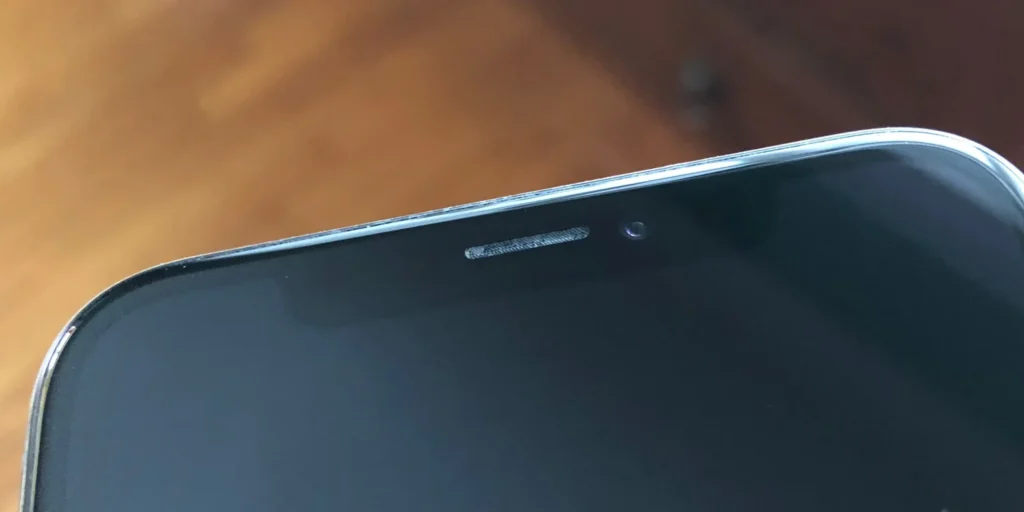
This speaker differs from the loudspeaker, which is used during speakerphone calls, music playback, or media streaming. The earpiece is tuned specifically for voice clarity and proximity-based audio output.
It also plays audio during voice memos or audio messages when you lift the phone to your ear. Because it’s tied closely to iOS settings and proximity sensors, any interference (physical or software-based) can affect its performance.
That’s why identifying how it functions is key to troubleshooting.
Common Causes of Earpiece Speaker Issues
Before tackling fixes, it helps to know what might be causing the problem. Once you identify the root cause, most of these issues are simple to resolve.
- Low Volume Settings: The most basic reason is often overlooked. The in-call volume may be set too low or muted accidentally.
- Dirt or Debris Blockage: Dust, skin oils, or lint can block the tiny holes in the earpiece grill, muffling or completely silencing the sound.
- Connected Bluetooth Devices: If your iPhone is connected to a Bluetooth headset or speaker, audio may be rerouted without your knowledge.
- Software Glitches or Bugs: iOS updates or corrupted settings can interfere with speaker functionality, often requiring a simple restart or reset.
- Accessibility Settings Misconfigured: Certain features, like mono audio or hearing aid mode, can unexpectedly impact earpiece audio.
- Physical or Water Damage: Drops or moisture exposure can damage the internal speaker or related circuits, leading to hardware failure.
- Third-Party App Conflicts: Sometimes, apps that control audio output (like recording apps) may hijack the speaker function without releasing it properly.
Understanding these possibilities can help you apply the right fix without wasting time on unnecessary steps.
Step-by-Step Solutions to Fixing iPhone Speaker Not Working
If your iPhone’s earpiece speaker isn’t working, don’t worry. Most fixes are straightforward and don’t require tech skills. This section walks you through the most effective solutions, starting from the simplest to the more advanced options.
Try each one in order until the issue is resolved.
A. Check Volume and Silent Mode
Start by increasing the in-call volume using the side buttons while on a call. If nothing changes, ensure the Ring/Silent switch above the volume buttons isn’t flipped to silent mode.
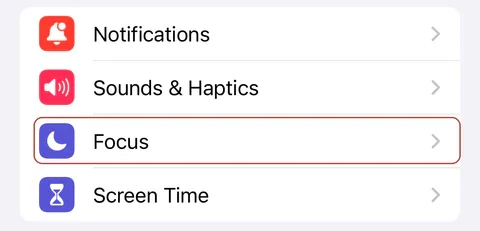
Go to Settings > Sounds & Haptics, and confirm that the volume slider is up. Sometimes, Do Not Disturb or Focus modes may silence sounds; turn those off too. These quick checks are easy to miss but often fix the issue immediately without needing deeper steps.
B. Clean the Earpiece Gently
If the earpiece grill looks dusty or blocked, cleaning it can make a huge difference. Gather the following materials:
- A soft-bristled toothbrush
- A microfiber cloth
- A can of compressed air (optional)
Steps to clean:
- Power off your iPhone
- Gently brush the earpiece area with the toothbrush
- Use compressed air lightly (at an angle, not directly into the grill)
- Wipe the area with a microfiber cloth
How to Clean the Dust from iPhone Earpiece Speaker Grills
If the rust or dirt is stubborn, dampen the cloth slightly with 70% isopropyl alcohol and wipe carefully. Let it dry thoroughly before testing.
C. Restart Your iPhone
A quick restart can reset temporary glitches affecting the speaker. To do this:
- Press and hold the side and volume buttons (on Face ID models) or just the power button (on Touch ID models) until the slider appears
- Slide to power off, wait 10 seconds, then turn it back on
Once your iPhone reboots, test the speaker again. Many minor bugs clear up after a simple restart.
D. Check Audio Settings and Accessibility Options
Sometimes, customized audio settings interfere with speaker output. Start by going to:
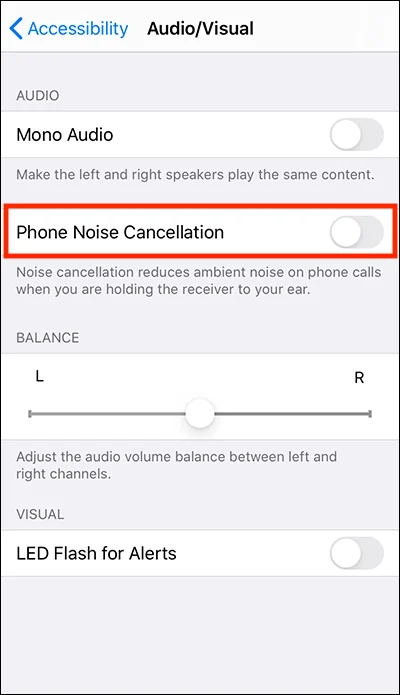
Settings > Accessibility > Audio/Visual
- Make sure “Mono Audio” is turned off
- Keep the left/right balance slider centered
- Turn off “Phone Noise Cancellation” if it’s on
Then check:
Settings > Sounds & Haptics
- Ensure the Ringer and Alerts volume is turned up
- Disable “Change with Buttons” to avoid accidental volume changes
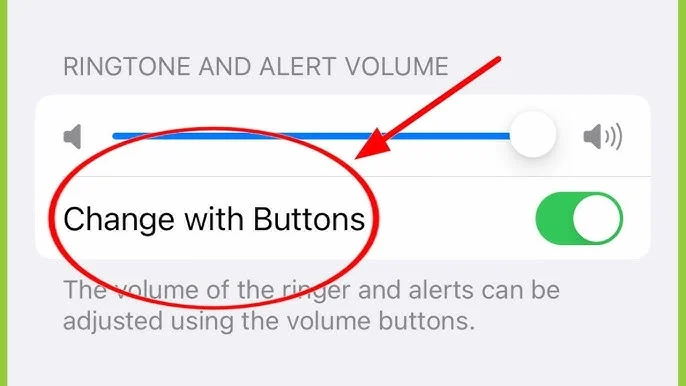
These settings fine-tune your sound experience and can sometimes misroute or dampen earpiece audio.
E. Remove Bluetooth or Audio Output Connections
Your iPhone might be sending audio to a connected Bluetooth device instead of the earpiece. To check:
- Swipe down from the top right to open Control Center
- Tap the AirPlay or audio icon
- Select “iPhone” as the output source
Alternatively, go to Settings > Bluetooth and toggle it off temporarily. It forces your phone to use its internal speakers again. It’s a quick fix that works more often than you might expect.
F. Test with Voice Memos and Calls
Open the Voice Memos app and record a short clip. Play it back while holding the phone to your ear. If you hear the audio clearly, the earpiece works.
Also, try making a regular phone call and switching between speaker and earpiece modes. If one works but not the other, that will help determine whether it’s a hardware or software issue.
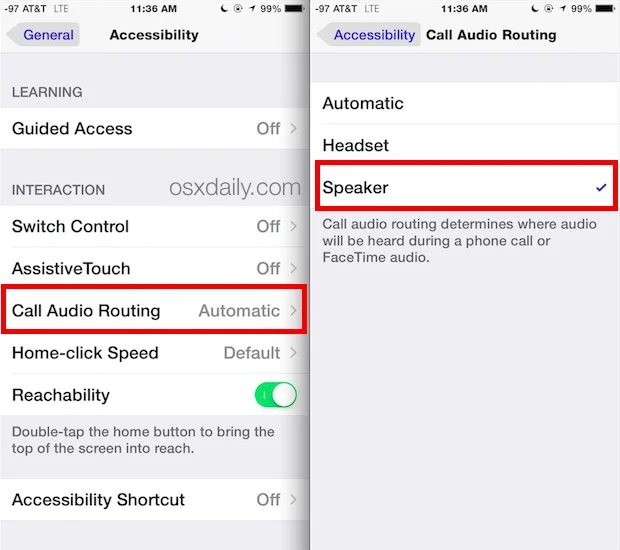
This step helps confirm whether it’s truly a speaker problem or something else.
G. Reset All Settings (without deleting data)
If nothing works so far, try resetting all settings. It won’t delete your photos or apps, but will return system settings (Wi-Fi, Bluetooth, etc.) to default.
Go to: Settings > General > Transfer or Reset iPhone > Reset > Reset All Settings
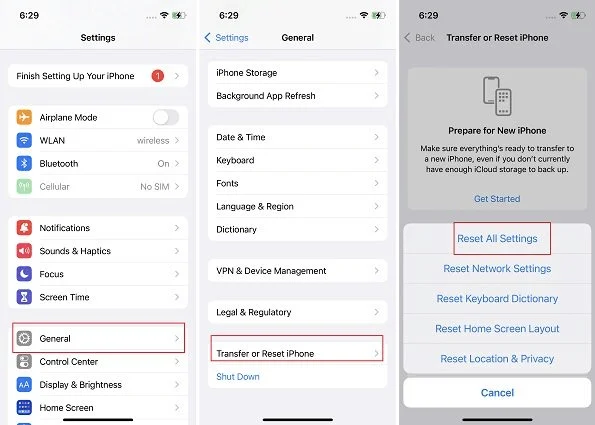
Enter your passcode and confirm. This reset removes any conflicting customizations that might be affecting audio.
After the reset, test your earpiece again. You’ll need to reconnect Wi-Fi and Bluetooth devices, but it’s a clean slate for your phone’s software.
H. Update or Reinstall iOS
Outdated software can create bugs that affect audio output. First, check for updates:
Settings > General > Software Update
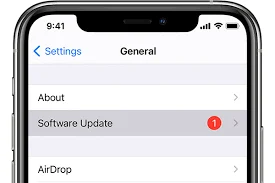
Install the latest iOS if available. If you’re already on the latest version and the problem persists, reinstall iOS via Finder (macOS) or iTunes (Windows).
Back up your data before doing this. Reinstalling can help if the issue is tied to a corrupted system file or update failure that a simple reset didn’t fix.
I. Try a Factory Reset (last resort)
Only do this if every other method has failed. A factory reset erases all data and settings, so make sure to back up your iPhone to iCloud or a computer.
Go to: Settings > General > Transfer or Reset iPhone > Erase All Content and Settings
How to Reset iPhone to Factory Settings
Once reset, set up your phone as new (not from backup) to test the earpiece. If it works, the issue was software-related. If not, it may be hardware.
When to Seek Professional Help
If you’ve tried every solution and the earpiece is still silent, it might be time to get expert assistance. Here are some signs that your issue could require professional repair or replacement.
- No Sound Even after Factory Reset: If your speaker remains silent despite a clean reinstall, the problem is likely hardware-related and beyond DIY fixes.
- Distorted or Crackling Sound: A buzzing or muffled earpiece may indicate internal damage or water exposure, requiring parts replacement.
- Visible Damage to the Earpiece Grill: Dents, corrosion, or buildup that doesn’t respond to cleaning may mean the component is failing.
- Earpiece Works Intermittently: If sound cuts in and out randomly, it could point to a loose internal connection.
- Your Device is Still under Warranty: Always check warranty or AppleCare+ coverage. If you’re covered, seek official support to avoid voiding the warranty.
Preventive Tips for the Future
To keep your iPhone’s earpiece in top shape, avoid using it in humid or dusty environments. Always store your device in a clean, dry place. Use a case that offers slight elevation around the front to keep dust and moisture away.
Clean the speaker grill gently once in a while using a soft brush. Also, avoid maxing out your call volume frequently, as this can cause wear over time. Regular updates and moderate audio settings can extend hardware life.
Conclusion
An iPhone earpiece that’s not working doesn’t always mean it’s broken for good. Often, it’s a temporary glitch, a minor setting, or debris causing the issue.
This guide explained everything from simple checks to deeper resets. If none of those solve the problem, professional help might be the safest next step.
The good news is that most people can fix the issue themselves with a bit of patience and care. Don’t rush. Just follow the steps, and your sound should be back in no time.
