
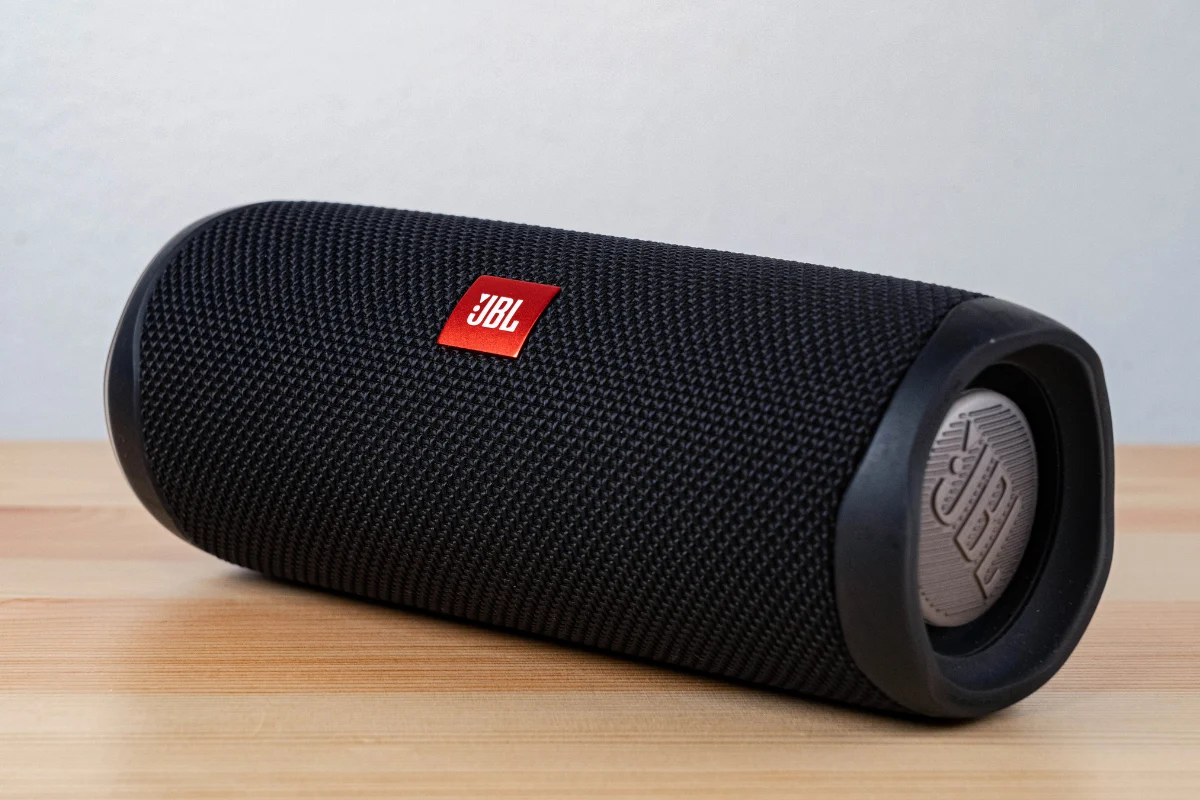
Want to enjoy your PS5 audio through a Bluetooth speaker? You’re not alone. Many gamers prefer the wireless freedom and sound quality of portable speakers. However, the PS5 doesn’t support Bluetooth audio natively, which often leads to confusion.
That said, there are several effective workarounds that let you connect a Bluetooth speaker to your PS5, even if not directly. Some involve using external accessories, while others rely on settings and devices you might already have.
This guide covers the best step-by-step methods to get your PS5 audio through a Bluetooth speaker, whether you’re gaming in your living room or on the go.
Why the PS5 Doesn’t Support Standard Bluetooth Audio
Despite having Bluetooth functionality, the PS5 doesn’t support standard Bluetooth audio devices like wireless headphones or speakers. The main reason is that Sony disabled the A2DP profile, the standard for high-quality audio transmission over Bluetooth.
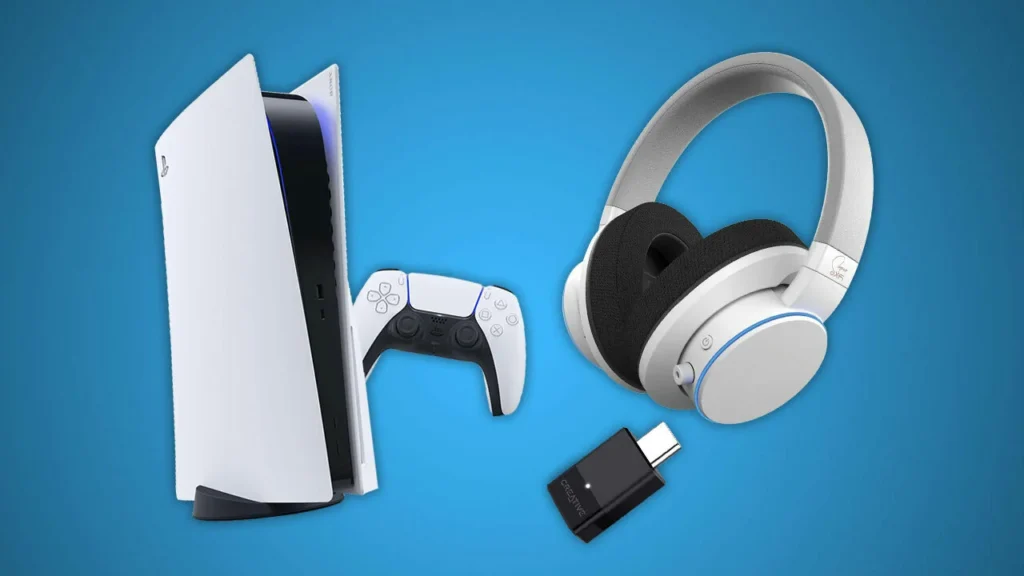
The goal behind this restriction is to reduce audio latency. Bluetooth audio introduces a delay between what’s happening on-screen and what you hear; an issue that affects gaming accuracy, especially in fast-paced titles. Sony prioritizes real-time response over convenience in this case.
As a result, most Bluetooth speakers won’t pair with the console directly. When you try, you’ll likely see an error message stating that the device is unsupported.
To work around this, you need to rely on alternative hardware or smart display features that bridge the gap between the PS5 and your Bluetooth speaker. These workarounds are safe, easy to set up, and effective for most casual gaming or media scenarios.
Option 1: Use a Bluetooth Audio Transmitter
A Bluetooth audio transmitter is a small device that lets you send audio wirelessly from the PS5 to your Bluetooth speaker. It works by converting the audio signal into a Bluetooth-compatible stream using either a 3.5mm jack, USB port, or optical output.
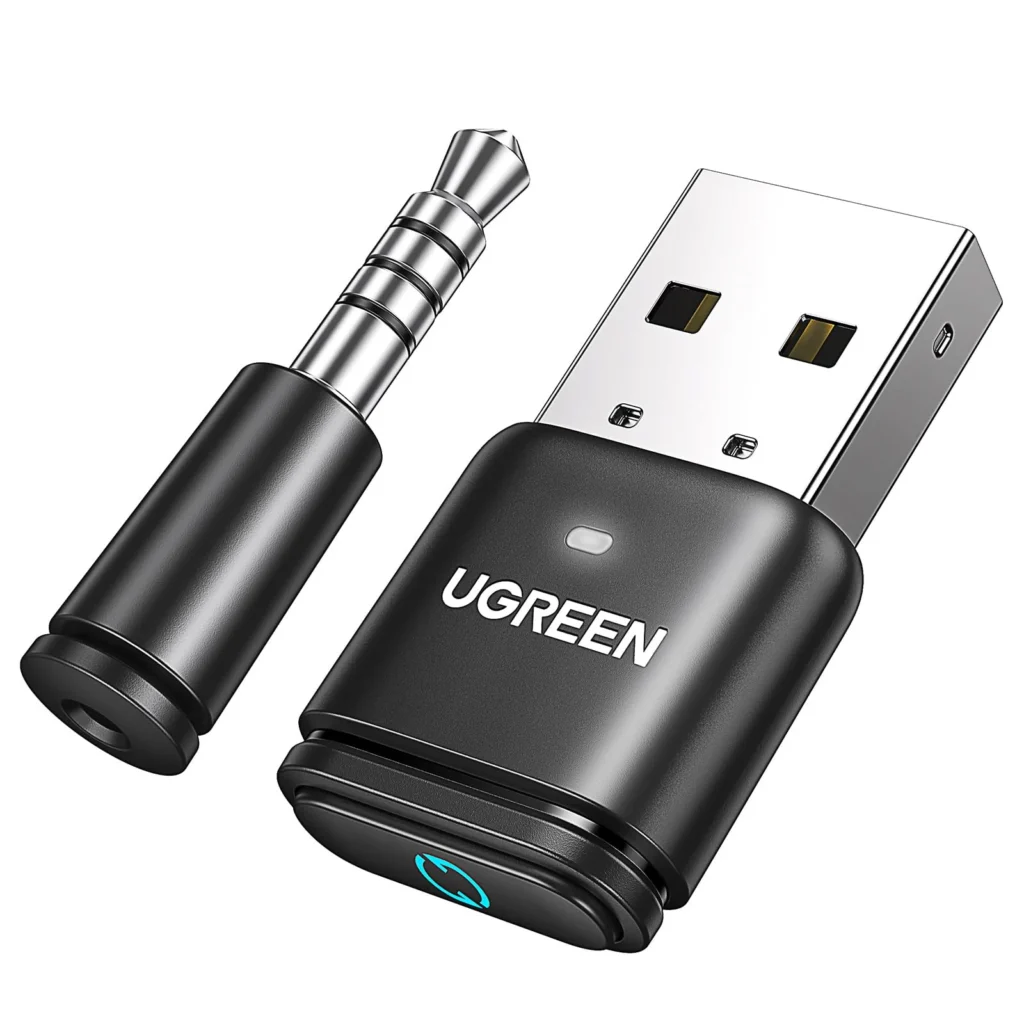
Here’s how to set it up:
- Depending on the model, plug the transmitter into the PS5 controller’s 3.5mm headphone jack or the console’s USB port.
- Turn on pairing mode on both the transmitter and your Bluetooth speaker.
- Wait for them to connect. Once paired, you should hear game audio from your speaker.
This method is best for users who already own a good Bluetooth speaker and want a consistent wireless setup.
Pros:
- Portable and compatible with many devices
- Low-latency options like aptX LL reduce audio delay
Cons:
- Extra cost for the transmitter
- Possible minor lag in competitive games
For casual gaming, media consumption, or background music while playing, this setup offers a reliable solution that blends flexibility and simplicity.
Option 2: Use a Smart TV or Monitor with Bluetooth Passthrough
If your smart TV or monitor supports Bluetooth audio output, you can use it as a passthrough for PS5 sound. In this setup, the console sends audio to the TV over HDMI, and the TV then forwards it to a Bluetooth speaker.
Here’s how to do it:
- Connect your PS5 to the TV via HDMI.
- Open your TV’s settings and turn on Bluetooth audio output.
- Pair your Bluetooth speaker with the TV.
How to Connect Bluetooth Headphone/Earphone to Android Smart TV
- Test and adjust volume or sync settings as needed.
This method is simple and doesn’t require additional adapters. It’s ideal for users whose TVs already support Bluetooth.
Pros:
- No extra hardware needed
- Seamless for media apps and casual play
Cons:
- Some TVs introduce a slight audio lag
- Limited control over advanced audio settings
Still, it’s an easy workaround if you want a clean, wire-free setup with your existing equipment.
Option 3: Use a Soundbar or Speaker with HDMI ARC + Bluetooth
HDMI ARC (Audio Return Channel) lets your TV send audio to a connected soundbar or speaker through a single HDMI cable. Some modern soundbars also support Bluetooth output or passthrough, allowing you to relay sound to a secondary speaker.
Here’s how to set it up:
- Connect your PS5 to the TV via HDMI.
- Connect the TV to your soundbar using the HDMI ARC port.
How To Connect A Soundbar | HDMI, ARC, Optical, Coaxial, Bluetooth
- If the soundbar supports Bluetooth out, pair it with your Bluetooth speaker.
- Fine-tune audio sync and output settings in the TV or soundbar menu.
This method is best for users with a home theater setup or who want richer audio quality.
It minimizes cable clutter and improves sound performance, but make sure to enable ARC or eARC in your TV’s settings. Also, adjust audio sync settings to reduce lag, especially when forwarding sound over Bluetooth.
Option 4: Use Remote Play with a Bluetooth Speaker (for Mobile Players)
If you’re using PS Remote Play on a phone or tablet, you can stream PS5 gameplay while routing audio to a Bluetooth speaker. This option works well for portable or late-night gaming.
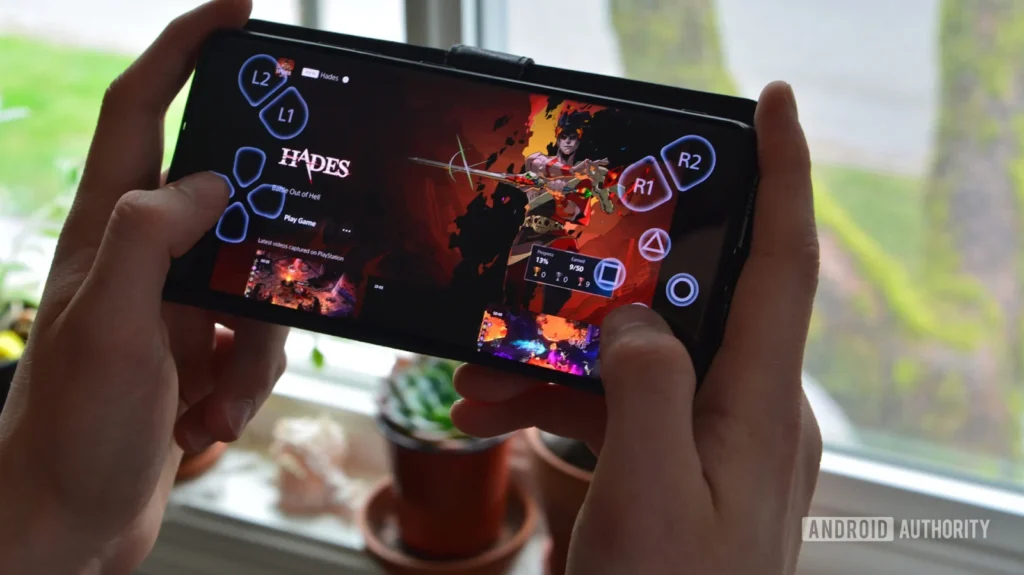
Here’s how to do it:
- Download and install the PS Remote Play app on your mobile device.
- Log in using your PlayStation account.
- Connect your Bluetooth speaker to your mobile device.
- Launch Remote Play and start your game.
This setup is great when your main screen is occupied or you prefer to play from another room. It’s also ideal for users who enjoy a personal, immersive audio experience with minimal setup.
While there’s some input lag compared to direct play, it’s more than enough for story-driven or casual games. For smoother performance, use a 5GHz Wi-Fi connection and ensure both devices are on the same network.
Remote Play makes your PS5 audio portable and accessible anywhere in your home.
Audio Settings You Can Adjust on the PS5
Even when using workarounds, adjusting audio settings on your PS5 can improve your sound experience. Here’s how to access them:
- Go to Settings > Sound
- Choose Audio Output and select your current output device
- You can change audio format (Linear PCM, Bitstream), enable HDMI device types, or adjust volume levels
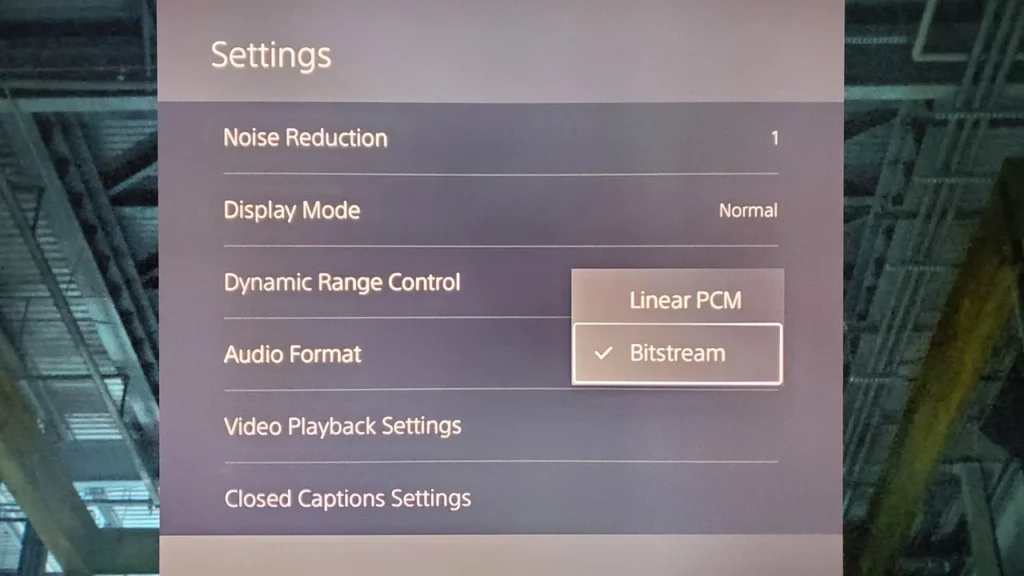
Also, some games allow you to tweak audio balance, which is especially useful when using wireless audio solutions that prioritize either voice or effects.
Experiment with in-game settings to see if your Bluetooth speaker seems unbalanced or if certain audio elements sound too soft or too sharp.
Common Issues and How to Fix Them
If you’re running into problems, here are some quick fixes to common connection issues:
Bluetooth Not Pairing
Make sure both your speaker and transmitter (or TV) are in pairing mode. Delete old pairings and try again from a clean state.
Audio Delay
Use a transmitter that supports aptX Low Latency. To minimize lag, turn off any extra sound processing features in your TV or soundbar.
Audio Cuts Off
This may occur due to signal interference. Keep your speaker and source device within close range, and avoid crowded Bluetooth environments.
Remote Play Lag
Lag is common over weaker networks. Use a 5GHz Wi-Fi network and make sure your mobile device and PS5 both use stable connections. Lower the Remote Play resolution to improve speed if needed.
Recommended Devices and Adapters
For a smoother setup, using the right tools makes all the difference. Here are some top-rated devices:
- TP-Link USB Bluetooth 5.0 Adapter – Good for low-latency audio with USB-C compatibility
- Avantree Leaf USB Transmitter – Supports aptX Low Latency for near-zero lag
- Twelve South AirFly Pro – Versatile for both console and travel use
- Anker Soundcore Motion+ – A reliable Bluetooth speaker with rich sound and minimal delay
Make sure your speaker or adapter supports low-latency profiles for gaming, especially if audio sync is important to you.
Conclusion
While the PS5 doesn’t directly support Bluetooth speakers, there are reliable ways to work around this limitation. Whether it’s through a Bluetooth transmitter, smart TV passthrough, soundbar integration, or Remote Play, you can still enjoy wireless audio while gaming.
You can enjoy an immersive experience without sacrificing convenience by understanding the right accessories. Just remember to tweak your audio settings and troubleshoot minor issues as needed.
With the right setup, your Bluetooth speaker can become a great part of your PS5 experience; no wires, no hassle, just clear, portable sound every time you play.
