
If your Xiaomi phone’s volume keeps going down on its own, you’re not alone. This issue affects a number of users across different MIUI versions and devices, from Redmi models to the latest Xiaomi flagships.
It can disrupt music playback, calls, and even alarms, making it a frustrating problem to deal with.
The good news is that this is usually caused by system settings, third-party apps, or hardware glitches that can be resolved without a trip to the service center.
In this guide, we’ll walk you through practical steps to identify the root cause and fix the issue permanently. Whether it’s a feature buried in settings or a physical button problem, each method is aimed at regular users without requiring technical expertise.
Common Reasons Why Xiaomi Volume Lowers Automatically
Before you dive into solutions, it’s helpful to understand what might be causing the issue. Below are some of the most frequent culprits behind auto-reducing volume on Xiaomi phones:
- Stuck or Faulty Volume Buttons: Dirt or pressure from a tight case can keep volume-down buttons engaged, leading to silent playback.
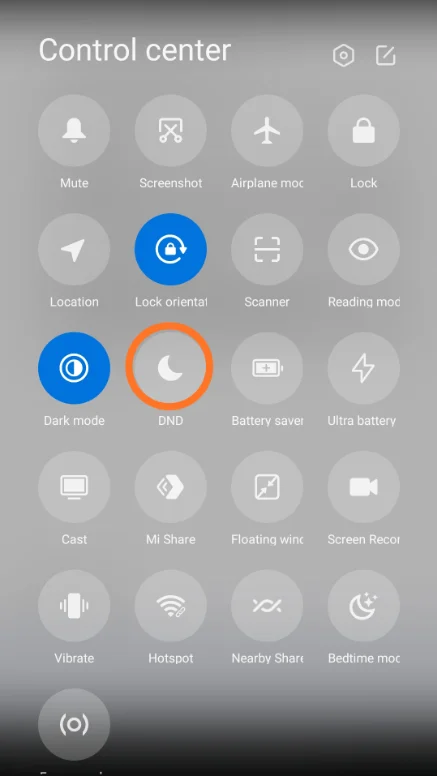
- Do Not Disturb Mode (DND): If DND is scheduled or active, it may automatically lower notification or media volumes.
- Sound Enhancer Features: Tools like Mi Sound Enhancer or Dolby Atmos sometimes auto-adjust volume based on the content or headphone type.
- Third-Party Apps with Audio Control: Apps like automation tools, battery optimizers, or even music players may alter sound settings without asking.
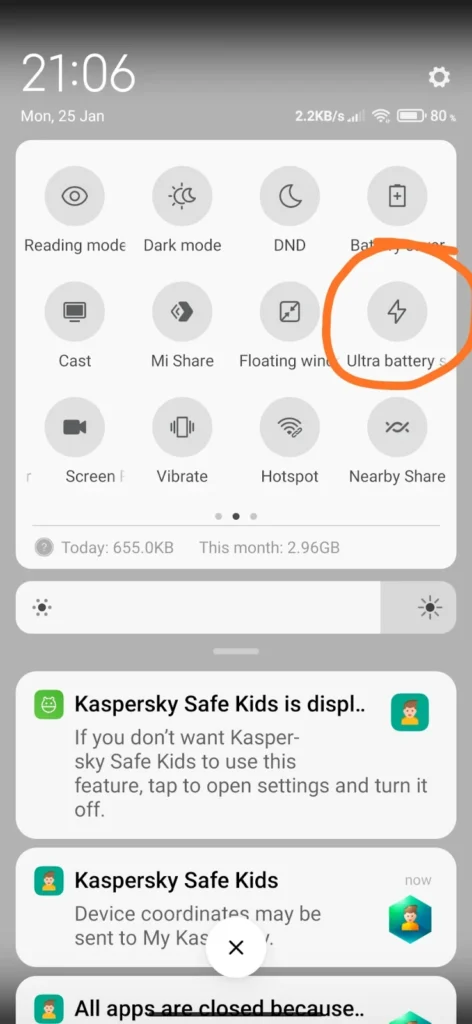
- Battery Saver Interference: Aggressive battery-saving settings can restrict app behavior and reduce system sound output during low power.
- MIUI Bugs or Incomplete Updates: Certain updates may introduce sound control bugs, especially in beta or early-stage MIUI builds.
Understanding these causes will help you apply the most effective solution without unnecessary trial and error.
Basic Checks Before Deep Troubleshooting
Start with simple checks to rule out surface-level problems before you begin tweaking deeper system settings. These early steps can save time and sometimes resolve the issue entirely.
- Remove the Phone Case: Some cases press on volume buttons, especially if they are not designed for your exact model.
- Clean the Buttons: Use a soft cloth or compressed air to remove dust or debris around the volume controls.
- Restart the Phone: A simple reboot can clear temporary software glitches affecting the sound system.
- Update MIUI and System Apps: Go to Settings > About phone > System update to ensure you’re not running an outdated build.
- Try Safe Mode: Booting into Safe Mode disables third-party apps. If the issue disappears, the problem likely lies in an app you’ve installed.

Performing these steps helps narrow down whether you’re dealing with a hardware, app, or system-level issue.
Disable Sound Enhancements or Audio Effects
Many Xiaomi phones come with built-in audio enhancements that aim to improve your listening experience. However, these can also dynamically adjust volume depending on the media type or connected device, which may lead to sudden drops in volume.
To disable these features:
- Go to Settings > Sound & vibration
- Tap Sound effects or Audio settings
- Turn off Dolby Atmos (if available)
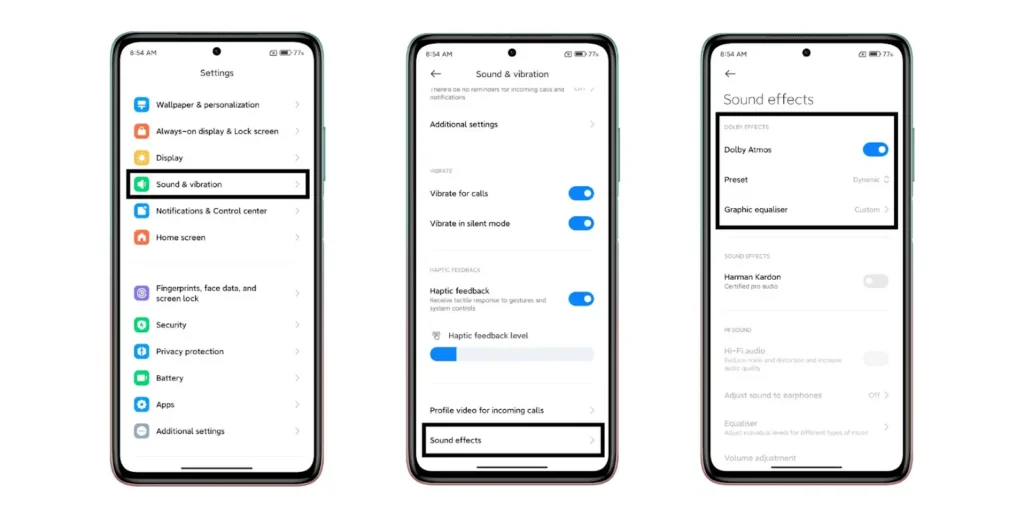
- Disable Mi Sound Enhancer or any equalizer presets
- Select “No effects” or “Default” where possible
These enhancements often activate when switching from speakers to headphones or from video to music. They can also behave differently based on the headphones used or the type of media being played.
If you notice volume changes only during music or streaming, it’s likely these optimizers are interfering. Disabling them will ensure consistent output across all content types and devices, especially when using third-party music apps or Bluetooth gear.
Check for Automation or Scheduled Sound Profiles
MIUI allows automated sound behavior, but these features can unintentionally reduce your volume at specific times or under certain conditions. It’s worth checking if something is silently changing your audio levels.
Follow these steps:
- Go to Settings > Sound & vibration
- Tap on Do Not Disturb and turn it off if it is active
- Look for Scheduled DND profiles and disable them
- Navigate to Additional settings > Schedule to check any volume-related automations
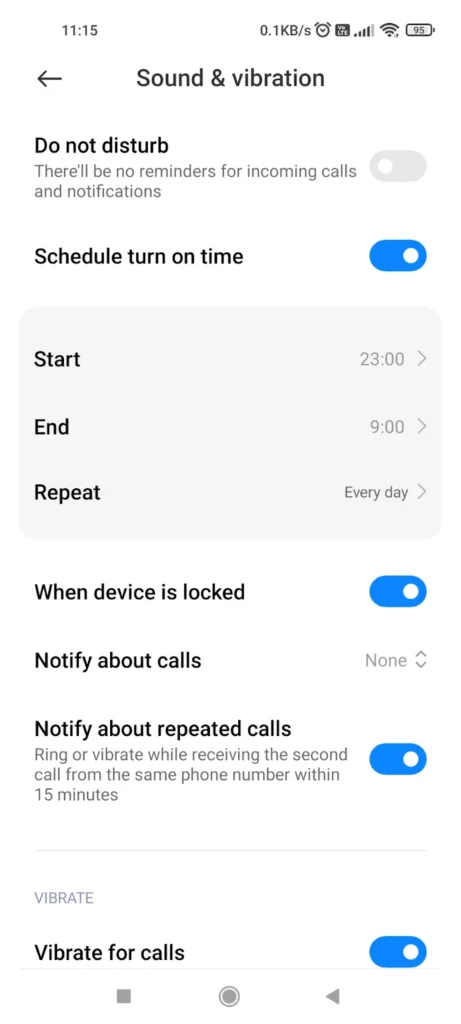
DND mode can lower media, notification, and ring volumes even if only partially active. You may have previously set up a schedule and forgotten about it. Disable all scheduled or automated profiles to ensure full manual control over your audio.
Review App Permissions and Conflicting Apps
Some third-party apps have the ability to change system settings, including audio volume. These may include battery savers, automation tools, or lesser-known music apps that override default behavior.
To investigate:
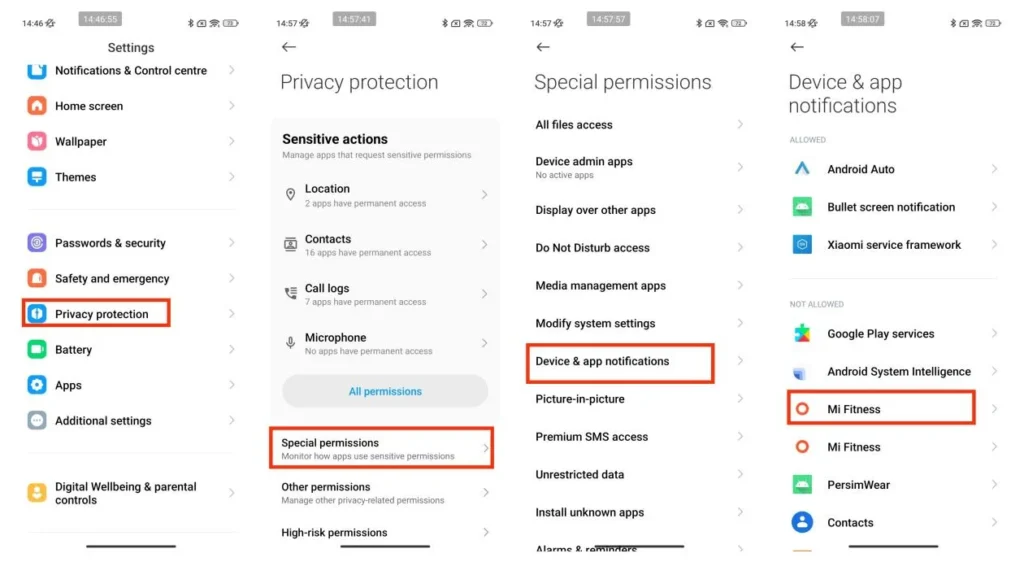
- Go to Settings > Privacy protection > Special permissions
- Tap on Modify system settings
- Revoke access for any suspicious or unnecessary apps
- Also, check Autostart permissions for audio or battery apps
Watch out for:
- Automation tools like Tasker, MacroDroid, or IFTTT
- Battery savers or cleaning apps like DU Battery Saver, Security Master
- Rogue media apps or unknown background services
These apps can silently adjust volume as part of their “optimization” routines. Removing or restricting their permissions is often a simple fix. If the volume issue stops in Safe Mode, then one of these apps is definitely to blame.
Run a Hardware Diagnostic Test
If none of the earlier steps solve the issue, it’s worth checking if the volume-down button or internal components are faulty. Xiaomi devices often come with a built-in diagnostic tool.
To access it, open the Phone app, dial ##6484##, and hit call. This opens the hardware test menu, where you can test volume buttons, speaker output, and other modules.
Run the Volume Key Test to ensure the buttons are functioning normally and not stuck. If the test fails or behaves abnormally, you may be dealing with a hardware problem, in which case, professional repair is recommended.
Reset System Settings (without data loss)
If system-level conflicts or UI bugs are to blame, resetting all system settings can often resolve them without erasing your data.
Here’s how to do it:
- Go to Settings > About phone > Factory reset
- Tap on Reset system settings only
- Confirm the prompt and proceed
How to Reset All Settings on XIAOMI Redmi 10C – Factory Reset
This reset will restore settings for:
- Sound and volume profiles
- Display and brightness
- Network (Wi-Fi, Bluetooth)
- Permissions and app preferences
This process does not delete your apps, personal files, or accounts. It’s an effective middle-ground fix for persistent bugs caused by misconfigured options, especially after system updates or conflicting app behavior.
When to Do a Factory Reset
A factory reset should only be performed as a last resort after exhausting all other fixes. It wipes the device and restores it to its default software state, which can resolve stubborn or corrupted system issues.
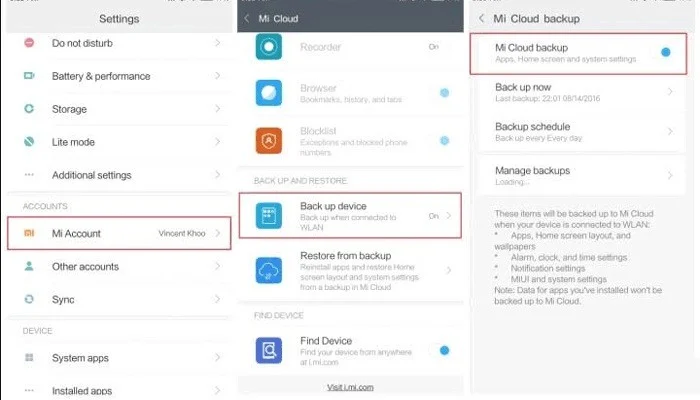
Before starting, always back up your data:
- Use Xiaomi Cloud or Google Drive
- Go to Settings > About phone > Factory reset
- Tap on Erase all data (factory reset)
- Confirm and follow the on-screen prompts
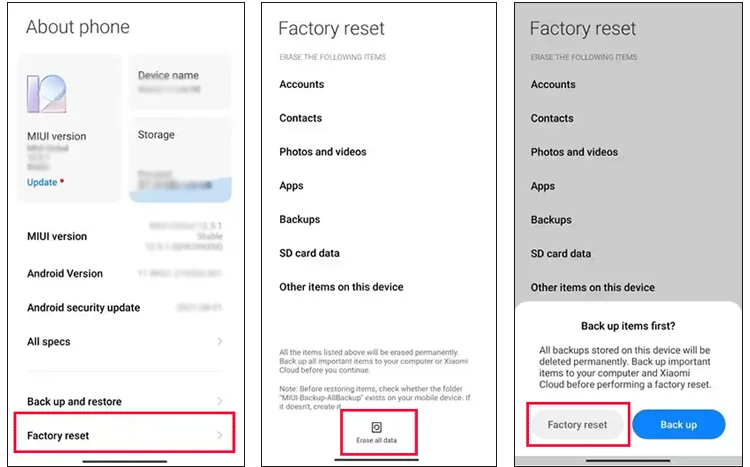
This will delete all files, apps, and accounts. Only proceed if you’ve backed up everything, as data recovery afterward is not guaranteed. Use this step carefully when all other methods fail.
Conclusion
Volume issues on Xiaomi phones can be caused by anything from settings conflicts to faulty buttons or background apps. By following this guide step-by-step (from basic checks to advanced fixes), you’ll be able to pinpoint the cause and apply the right solution.
Whether it’s a DND setting, a sound enhancement conflict, or a system-level glitch, most cases can be fixed without professional help. However, don’t hesitate to contact Xiaomi support if the problem turns out to be hardware-related.
Regularly updating your phone and avoiding unnecessary third-party apps can help prevent similar issues in the future.
