
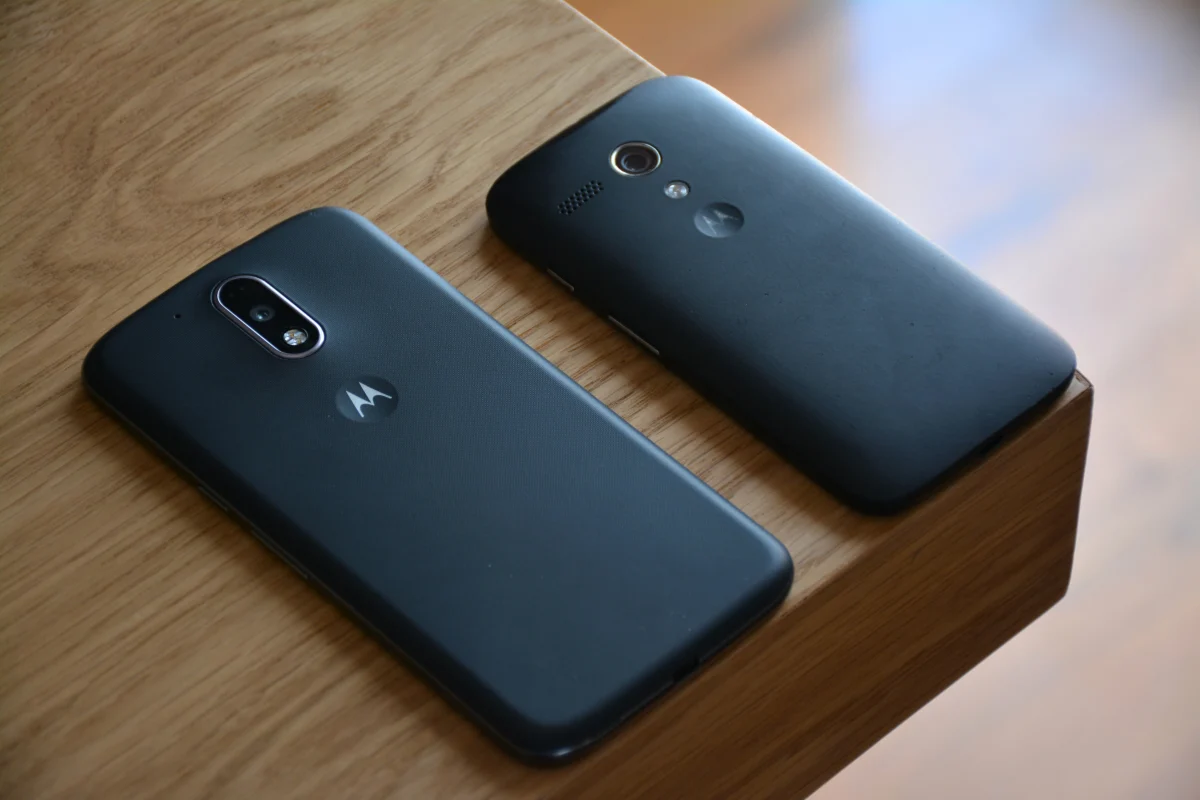
It’s frustrating when your Motorola phone’s speaker suddenly stops working. Whether you’re missing calls, can’t hear music, or the audio is cutting out randomly, this issue can disrupt daily life.
Fortunately, many of these problems are fixable without needing to rush to a repair center.
This guide will provide step-by-step solutions for identifying and fixing speaker issues, whether caused by software glitches, physical damage, or settings you didn’t know were active.
You don’t need to be tech-savvy, just follow along and try each method one at a time. Most users can solve the problem on their own with a little patience and basic troubleshooting.
Common Reasons Why Motorola Speakers Stop Working
Several factors can cause your Motorola phone’s speaker to malfunction. Some are minor and easily resolved, while others may indicate deeper hardware issues. Understanding the possible causes will help you troubleshoot more effectively.
Common culprits include:
- Temporary software glitches that freeze audio processes.
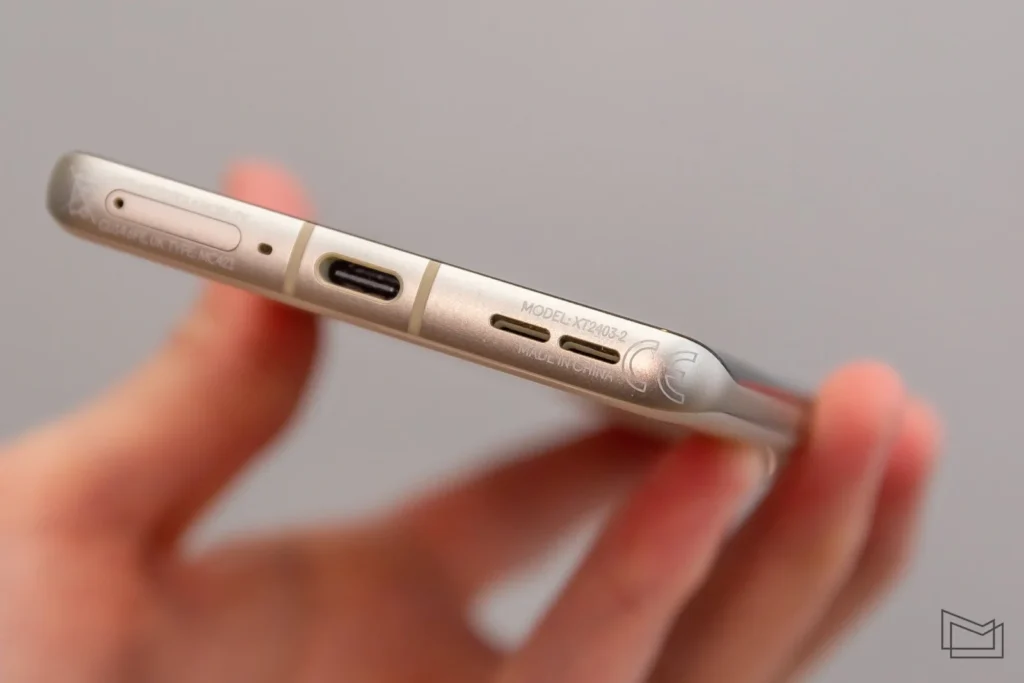
- Dust or debris clogging the speaker grills, affecting sound output.
- Bluetooth redirecting audio to a paired device instead of the phone speaker.
- App-level audio conflicts or settings overriding the system sound.
Software bugs from outdated firmware or recent app installations can also contribute. Similarly, improper use of headphone jacks, water exposure, or even aggressive cleaning may damage the speaker hardware.
Knowing whether it’s a software issue or something physical is key. The steps below will help you isolate the cause and apply the right fix.
Initial Quick Checks
Before diving into deeper fixes, try these simple checks to rule out the obvious. These steps may seem basic, but they solve the problem more often than you’d think:
- Make sure the volume isn’t muted or extremely low.
- Disable Do Not Disturb mode.
- Check if your phone is stuck in headphone mode.
- Turn off Bluetooth to ensure sound isn’t redirected to another device.
If your speaker still isn’t working after these checks, it’s time to move on to more focused troubleshooting.
Restart Your Motorola Device
Sometimes, all your phone needs is a quick reboot to reset audio processes. A temporary glitch may block speaker functions until the device refreshes.
To restart your Motorola phone:
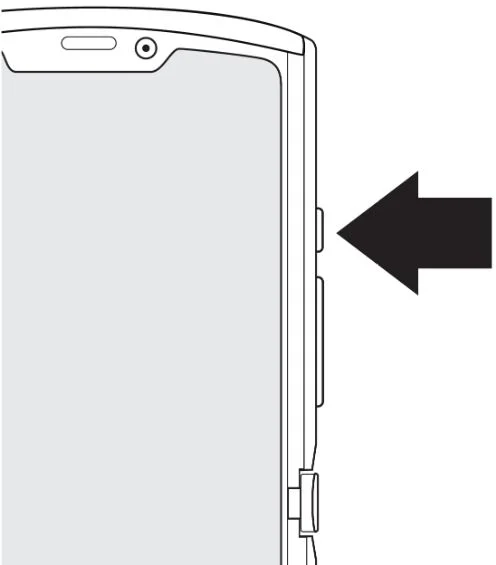
- Hold down the Power button until the power menu appears.
- Tap Restart. If that option isn’t visible, tap Power Off and turn the phone back on manually after 10 seconds.
Once it reboots, test the speaker again by playing music, making a call, or using an alarm. If the issue was minor, this simple step may have already resolved it.
Clean the Speaker Grills
Dust, lint, or dirt buildup inside the speaker grill can muffle or block sound. Cleaning it carefully may restore audio clarity.
Tools you may need:
- A soft-bristled toothbrush
- A microfiber cloth
- Compressed air (optional)
Steps to clean your Motorola speaker grill:
- Turn off your phone.
- Use the soft-bristled brush to gently dislodge any debris from the speaker area.
- If needed, blow lightly or use compressed air from a safe distance.
- Wipe the area with a microfiber cloth to remove leftover dust.
- Power your phone back on and test the sound.
Dirty phone’s speakers? Here’s how to clean it | 1 min DIY
Avoid using liquids or sharp objects. Water can seep into the speaker and cause further issues, while pointed items might damage the mesh or internal components. Gentle, dry cleaning is usually all you need to get the sound back to normal.
Check Audio with Safe Mode
Safe Mode allows your Motorola device to run only the default system apps. This is useful for determining whether a third-party app is causing your speaker issues.
To enter Safe Mode on most Motorola devices:
- Press and hold the power button until the power options appear.
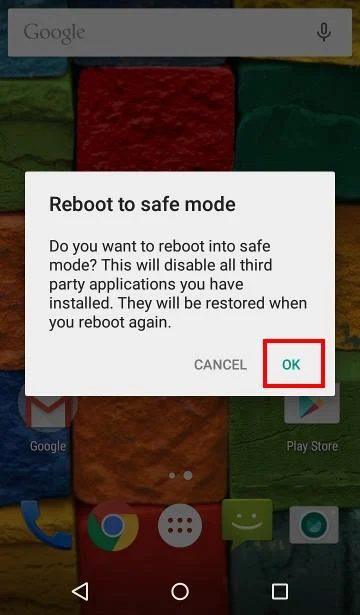
- Touch and hold “Power off” until you see a prompt to reboot in Safe Mode.
- Tap OK. Your phone will restart in Safe Mode, and you’ll see “Safe Mode” at the bottom of the screen.
While in Safe Mode, test the speaker by playing ringtones, alarms, or calls. If the speaker works here, a recently installed app may be to blame.
To exit Safe Mode, just restart your phone normally. Then, try uninstalling apps you recently downloaded, especially any audio apps or system tools, and test the sound again.
Check for System Updates
An outdated system can trigger audio bugs or hardware conflicts. Ensuring your Motorola phone runs the latest firmware can resolve unexpected speaker issues.
To check for updates:
- Go to Settings > System > Advanced > System updates.
- If an update is available, follow the on-screen instructions to download and install it.
After the update, restart your phone and test the audio. Updates often contain bug fixes that silently resolve issues like missing sound or hardware not responding correctly.
Test with Multiple Apps and Audio Types
Try using different sound sources to determine whether the speaker issue is system-wide or limited to certain apps.
Play music from Spotify or YouTube, make a call, test voice memos, and set an alarm or notification. If the speaker works in some but not all apps, the problem is likely software-related.
Also, confirm that app permissions are enabled for audio access under Settings > Apps. This test will help you understand whether a specific app needs fixing or if the issue lies deeper within your system or hardware.
Reset App Preferences and Permissions
Sometimes, speaker issues stem from incorrect app settings or revoked permissions, especially if you’ve customized many things over time. Resetting app preferences restores default settings without deleting any app data.
To do this:
- Go to Settings > System > Reset options. You can also find it in the Apps settings.
- Tap on Reset app preferences.
- Confirm the action when prompted.
It resets disabled apps, notification restrictions, background data limits, and permission preferences. It won’t erase your files or apps, but it can fix misconfigured audio behaviors caused by third-party apps or system tweaks.
After the reset, reboot your device and test the speaker again. This is especially useful if your speaker works in Safe Mode but not in regular use.
Perform a Factory Reset (Optional Last Resort)
If none of the previous methods worked, a factory reset may help, but only as a last resort. Back up all your important data first, since this will erase everything.
To perform a factory reset:
- Go to Settings > System > Reset options.
- Tap Erase all data (factory reset).
- Follow the on-screen instructions.
- Wait for your phone to reset and reboot.
Only try this after exhausting all other troubleshooting steps. If a deep software bug is causing the problem, this reset will give your device a fresh start.
When to Contact Motorola Support or Visit a Technician
If your speaker is still not working after cleaning, software fixes, and resets, the issue may be hardware-related. Internal damage, worn-out components, or moisture exposure could be affecting the speaker itself.
In such cases, it’s best to contact Motorola Support or visit a certified technician. They can run diagnostics, check the speaker assembly, and offer professional repair or replacement.
Avoid trying DIY internal repairs unless you have experience, as this can void your warranty or cause further damage. Let the experts handle the more technical problems.
Conclusion
A non-working speaker on your Motorola phone doesn’t always mean expensive repairs. In many cases, it’s just a minor glitch, blocked grill, or misconfigured setting.
You can often restore sound without much hassle by following the steps in this guide (from volume checks and Safe Mode testing to resets and updates).
But if you’ve tried everything and nothing works, don’t hesitate to get help from Motorola’s support team or a trusted technician. The sooner it’s diagnosed properly, the quicker you’ll return to clear calls and crisp audio.
Speaker issues are annoying, but they’re rarely unsolvable.
