

Spotify gives you more than just access to millions of songs. It also lets you shape how those songs sound. Whether you’re a casual listener or a self-declared audiophile, tweaking the equalizer (EQ) settings can significantly improve your listening experience.
From boosting the bass to brightening the vocals, EQ adjustments allow you to tailor your sound to fit your music, mood, or headphones.
This guide will walk you through the basics of what an equalizer is, how it works, and how you can use it on Spotify to get the best sound possible.
No technical background is needed; just your ears and a little curiosity. Let’s break it down into simple, easy-to-follow steps for every device.
What Is an Equalizer and How Does It Work?
An equalizer, or EQ, is a tool that lets you adjust the balance between different audio frequencies. These frequencies are usually divided into three main ranges: bass (low), mids (middle), and treble (high). Each one plays a role in shaping how your music sounds.
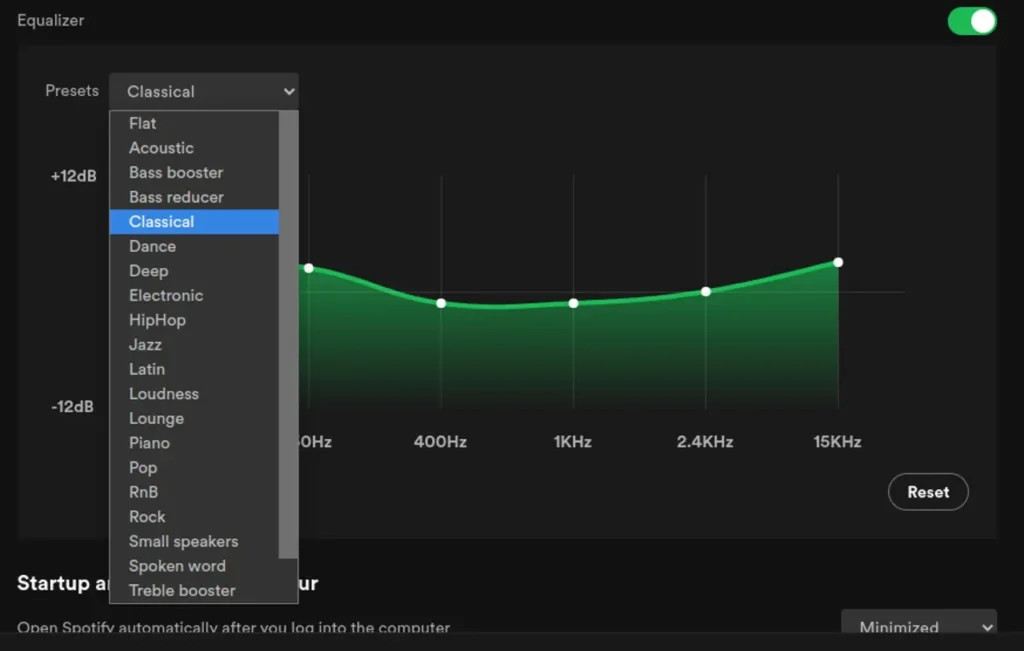
You can emphasise or reduce certain elements by adjusting the sliders on an EQ. For example, boosting the bass makes the beat hit harder, while increasing the treble makes vocals and instruments sound sharper.
Spotify’s EQ uses a set of frequency bands represented by sliders. Moving these sliders up or down increases or decreases the volume of that range. The result is a customized sound profile that better suits your ears and preferences.
You can also use EQ presets, which are pre-made settings tailored to specific genres like rock, pop, or classical. These are great starting points, especially if you’re new to EQ adjustments.
Keep in mind that sound is subjective. What sounds great to one person might not appeal to another. So, don’t be afraid to experiment a little. EQ is all about finding what works best for your ears and your favorite tunes.
Accessing Spotify’s Built-in EQ Settings
Spotify’s built-in equalizer is easy to access, but the path varies depending on your device. Here’s how to find it.
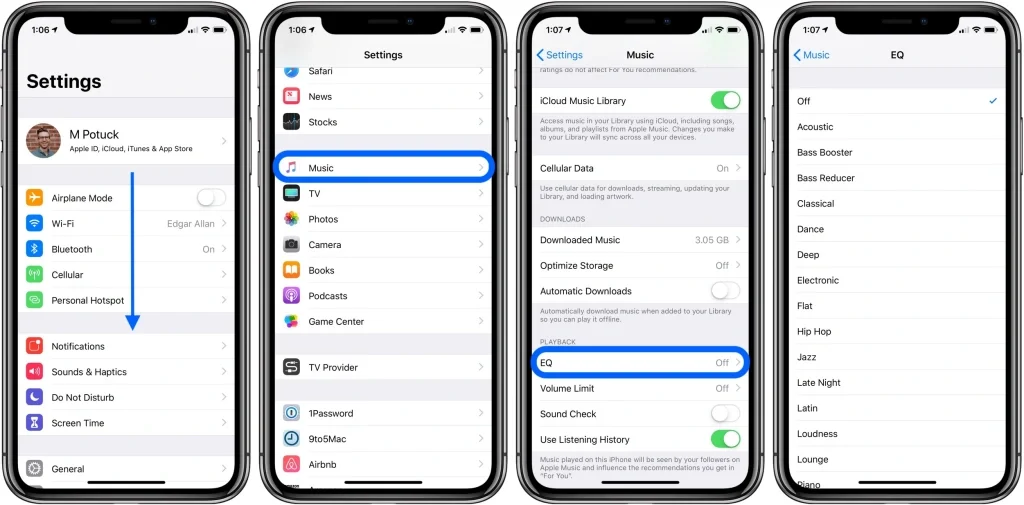
On iPhone or iPad:
- Open the Settings app on your device.
- Scroll down and tap Music.
- Tap EQ under the Playback section.
- Choose from available presets or turn it off.
On Android devices:
- Open the Spotify app.
- Tap your profile icon or gear icon (top-right corner).
- Scroll to Playback or Audio Quality.
- Tap Equalizer.
- Use the sliders or choose a preset.
The desktop version of Spotify currently doesn’t offer any built-in EQ settings. However, you can use third-party apps or system-wide equalizers if you’re on Windows or macOS.
Also, keep in mind that EQ changes take effect immediately. So, as you adjust sliders or switch presets, you can hear the impact in real time. Try playing a song while adjusting for instant feedback.
Best EQ Presets for Different Genres
EQ presets offer a quick and convenient way to enhance your music without diving into manual adjustments. Spotify’s presets are designed to match the general sound profile of each genre. Here’s a guide to help you get started.
- Hip Hop/Rap: Boost the bass and lower mids to emphasize the beat and rhythm. This setting enhances deep 808s and vocal clarity without drowning out lyrics.
- Rock: Slightly boost the mids and highs to make guitars and vocals more pronounced. Rock benefits from crisp detail and balanced energy across all ranges.
- Pop: Enhance both bass and treble slightly while keeping mids neutral. It gives a clean, vibrant sound ideal for upbeat tempos and vocals.
- Classical: Lower the bass a bit and boost the highs gently. It highlights strings, flutes, and other high-pitched instruments without overwhelming the composition.
- EDM: Boost both ends. Strong bass for the drops and high treble for crisp synths. EDM thrives on power and brightness.
- Podcasts/Audiobooks: Reduce bass slightly and increase midrange frequencies. It makes voices sound clearer and more natural, especially with headphones.
While these presets offer a great starting point, everyone hears things differently. What sounds sharp or deep to one person might feel flat to another. It’s worth experimenting a bit. Play a familiar song, switch between presets, and see what feels right to you.
Custom EQ Settings: How to Create Your Ideal Sound
Customizing your EQ is the way to go if you prefer more control over your audio. Start by playing a song you know well; ideally, one that covers a full range of instruments and vocals. This will help you better detect subtle changes as you adjust the frequencies.
Most EQs include five to seven bands. The far left controls the bass, the middle handles vocals and instruments, and the far right manages the treble. Begin by adjusting the bass. Tweak it gently up or down if it sounds too weak or overwhelming.
Then move to the mids. If the vocals feel muffled or too forward, try small changes until they sit just right in the mix. Finally, adjust the highs to add brightness or soften sharp sounds like cymbals or “S” sounds.
The key is subtlety. Large jumps between sliders can distort audio. Use your ears, not your eyes, and aim for a curve that feels smooth rather than jagged.
Save your custom EQ as a preset (if your device allows it) so you can reuse it easily. Whether you like punchy beats or smooth acoustics, fine-tuning the EQ can give you a personalized sound that brings your music to life.
Device and Headphone-Specific Considerations
The way your music sounds isn’t just about Spotify’s EQ. It’s also influenced by your device and the headphones or earbuds you use. Different gear responds differently to frequency adjustments.
Keep these factors in mind:
- iPhone/iPad: Apple devices have built-in sound processing. Some presets, like “Late Night,” boost overall loudness even outside Spotify.
- Android Devices: Many Android phones include system-level EQs or Dolby enhancements. These can override or work alongside Spotify’s settings.
My Favorite Dolby Atmos Plug-Ins in 2025
- Wireless Headphones: Bluetooth codecs (like AAC, SBC, or aptX) can affect sound quality. High-end headphones may have their own companion app with customizable EQs.
- Wired Earphones: These typically offer a more neutral sound. Use EQ to add color (like extra bass or treble), based on your preferences.
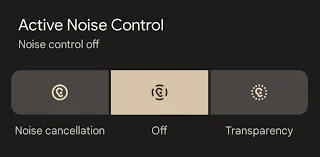
- Noise-Canceling Headphones: EQ adjustments may sound different with ANC on or off. Toggle between modes to test what works best.
Try combining device settings with Spotify’s EQ for fine control. Always test changes with music you know well, and be prepared for slightly different results across devices and listening setups.
Using Third-Party Equalizer Apps (Android & iOS Workarounds)
Spotify’s built-in EQ is helpful, but it’s also quite limited. Third-party apps offer more customization, presets, and advanced tools that take your audio tuning to the next level.
Here are some apps worth checking out:
- Wavelet (Android): Offers auto-EQ profiles for specific headphones, plus manual sliders and sound customization tools.
- Boom: Bass Booster & Equalizer (iOS & Android): Comes with immersive 3D surround sound, multiple presets, and a 16-band EQ.
- Neutralizer (Android): Personalizes sound based on your hearing test results. Great if your ears respond differently to frequencies.
- EQ Player (iOS): Gives more manual control for playback from local files or Apple Music (Spotify compatibility may vary).
External EQ apps often work better when Spotify’s own presets don’t offer enough punch or flexibility, especially if you’re picky about bass or clarity.
However, some streaming services don’t play nicely with system-wide EQs. You may need to grant special permissions or enable “device audio processing” for changes to take effect. Always test playback quality after installation.
Common Mistakes to Avoid with EQ
Tuning your EQ can be fun, but it’s easy to overdo or misjudge. Here are common pitfalls:
- Maxing out Sliders: Over-boosting frequencies can distort sound and stress your speakers or headphones.
- Ignoring Balance: Emphasizing bass too much might drown out vocals or instruments in the midrange.
- Not Considering Your Headphones: A setting that sounds good on one device might feel muddy on another. Test across gears.
- Using Presets Blindly: Presets are a good start, but always tweak them to your taste rather than sticking rigidly.
- Skipping Volume Checks: Loudness perception can trick your ears. Always test at consistent volumes.
Conclusion
Setting the best equalizer for Spotify is all about tailoring sound to your taste and gear. Whether you’re into bass-heavy hip hop or detailed classical, the right EQ setting can dramatically enhance your listening experience.
From Spotify’s built-in options to third-party apps, you have more control over how your music sounds than ever before. Just remember: sound is personal. Take your time, experiment, and find that sweet spot where your music truly comes alive.
Whether you’re a casual listener or someone who obsesses over every note, these tips will help you unlock richer, more immersive sound from your favorite tracks.
