
It’s frustrating when your iPhone rings but you can’t hear the person on the other end. Whether it’s a crucial client call or a quick chat with a friend, missing out on conversations can be both inconvenient and concerning. Thankfully, in most cases, the problem isn’t as serious as it feels.
From simple settings to hardware hiccups, there are several reasons why audio might not come through properly during calls. Many of these can be resolved without needing a technician or a new device.
In this guide, you’ll walk through the most common issues (step by step) and learn how to troubleshoot and fix them. The goal is to help you get your audio working again quickly so you can stay connected without unnecessary stress or confusion.
Check the Basics First
Before diving into deeper solutions, it’s smart to go over some common but easily overlooked settings. Many call audio problems come down to small things you can fix in seconds.
- Check Your Volume: Use the side volume buttons to raise the earpiece volume during a call.
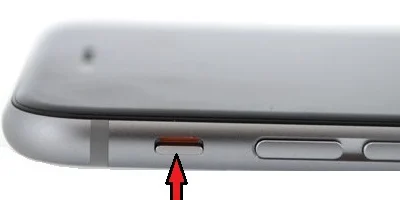
- Mute Switch: Make sure the physical mute switch above the volume buttons isn’t flipped down.
- Do Not Disturb: This can silence all calls. Go to Control Center or Settings > Focus > Do Not Disturb.
- Airplane Mode: If enabled, it disconnects all cellular activity. Ensure it’s off.
- Bluetooth Connection: Your iPhone might be connected to a speaker, earbuds, or your car. Go to Settings > Bluetooth and disconnect unnecessary devices.
- Headphones Plugged in: Sometimes your iPhone thinks headphones are still connected. Plug in and remove headphones again to reset this.
- Restart Your Phone: A quick reboot can reset audio routing issues or system glitches.
- Test the Speaker: Try playing music or a video to confirm sound is working outside of calls.
If everything above looks fine but you still can’t hear callers, move on to the next step.
Clean the Speaker and Check for Obstructions
Even a thin layer of dirt can affect your iPhone’s audio. Speaker grills are tiny, and it doesn’t take much dust, lint, or debris to block sound.
Start by inspecting the top front speaker where you normally hold the phone during a call. Use a soft, dry toothbrush or an anti-static brush to clean the area gently. Avoid pressing too hard, and never insert anything sharp or wet.
You can also use a small burst of compressed air to dislodge particles, but always spray from a slight distance and never directly into the grill.
If the speaker holes are visibly blocked, clearing them may instantly restore normal audio. After cleaning, place a test call or play a voice memo to check if the issue is resolved.
How to Clean iPhone Speakers at Home
Software-Related Causes
iPhones run on iOS, and like any software, it can run into occasional bugs. Sometimes, an iOS update includes changes that affect how audio is routed or processed. That could be the culprit if your device hasn’t been updated in a while.
Here’s how to check for and install iOS updates:
- Go to Settings
- Tap General
- Select Software Update
- If an update is available, tap Download and Install
- Follow the on-screen instructions and restart your device
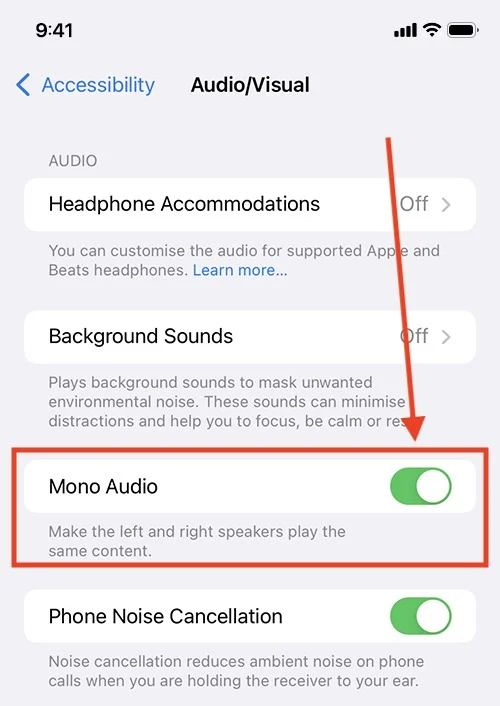
Sound issues may persist even after updating if certain audio settings were changed unintentionally. Features like Mono Audio or audio balance settings under Accessibility can redirect or alter sound during calls.
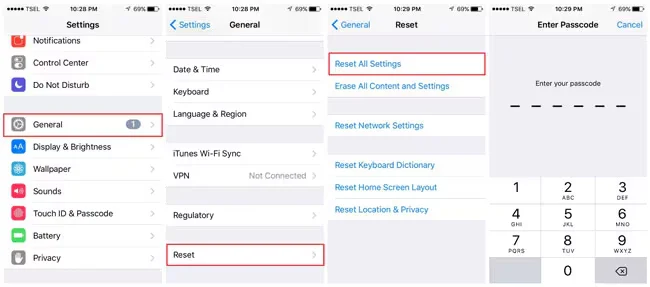
If tweaking sound settings doesn’t help, you can try resetting all settings. It won’t erase your data but will return most system preferences to their defaults. It’s a useful step to undo hidden misconfigurations that might affect your iPhone’s sound.
To reset all settings:
- Go to Settings
- Tap General
- Scroll down and tap Transfer or Reset iPhone
- Tap Reset, then choose Reset All Settings
This resets:
- Wi-Fi passwords
- Bluetooth connections
- Wallpaper
- Display and sound preferences
After resetting, test your phone calls again. You may need to rejoin your Wi-Fi networks, but this method often resolves persistent software-based issues without the need for a full factory reset.
Hardware-Related Problems
If none of the software or settings adjustments worked, there’s a chance your iPhone’s speaker is damaged.
Water exposure, drops, or aging components can cause the internal speaker to fail or produce faint audio. To test this, open the Voice Memos app and record a short message using the earpiece. Then, play it back at full volume.
If playback is quiet or distorted, the speaker may be physically damaged. If that works fine, you can also switch to speakerphone during calls; it’s likely the earpiece specifically is the problem.
In such cases, hardware repair may be necessary. You can book a Genius Bar appointment or visit an Apple-authorized service provider for a diagnostic and possible speaker replacement.
Bluetooth and Audio Routing Issues
One commonly overlooked reason for not hearing call audio is that it’s being sent to another device via Bluetooth. Your iPhone may automatically route audio to earbuds, a speaker, or your car’s system, even when those devices are off or out of range.
To fix this, check your current Bluetooth connections:
- Go to Settings > Bluetooth
- Look for any connected devices
- Tap the info icon next to a device, then tap Disconnect or Forget
To make sure your iPhone routes audio directly to the phone speaker during calls:
- Go to Settings
- Tap Accessibility
- Choose Touch
- Tap Call Audio Routing
- Set it to Automatic or Speaker, depending on your preference
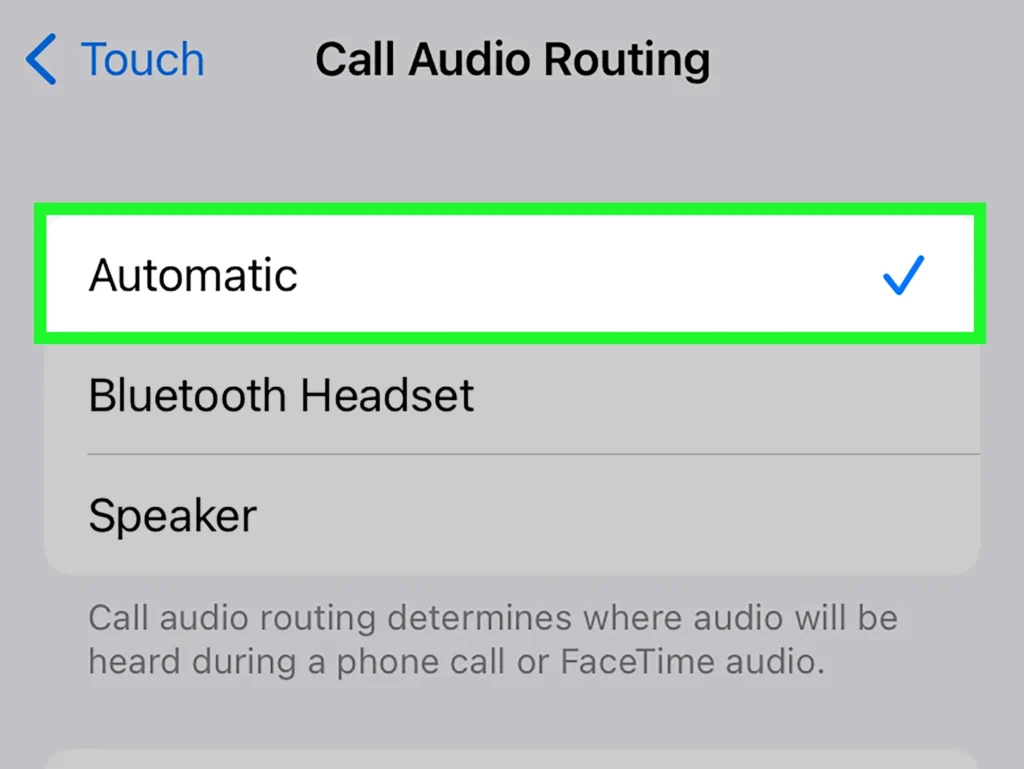
If it was previously set to Bluetooth or a headset, switching it back to Automatic can solve the issue. Test again by placing a call and checking where the sound comes from.
Call App and Network-Related Factors
Sometimes the issue isn’t with your iPhone, but with the app or network you’re using to make calls. Voice-over-IP (VoIP) apps like WhatsApp, Zoom, or Messenger can behave differently from your regular Phone app.
- Try making a call using the built-in Phone app.
- If the issue only happens in one app, update or reinstall that specific app.
- Switch from Wi-Fi to mobile data (or vice versa) to see if the problem is network-related.
Weak or unstable cellular signals can also cause call audio to drop, sound garbled, or go completely silent. You can toggle Airplane Mode on and off to refresh your connection and test again.
Accessibility Settings and Audio Balance
Certain accessibility features can accidentally disrupt audio during calls. It’s worth double-checking a few key settings.
- Go to Settings > Accessibility > Audio/Visual.
- Make sure Mono Audio is turned off.
- Check the audio balance slider and center it between left and right.
These options can easily be adjusted and might resolve the issue if the sound was only coming from one side or felt abnormally quiet.
Use Apple’s Diagnostic Tools
If you’ve exhausted all the common fixes and still can’t hear calls, it’s time to use Apple’s built-in diagnostics.
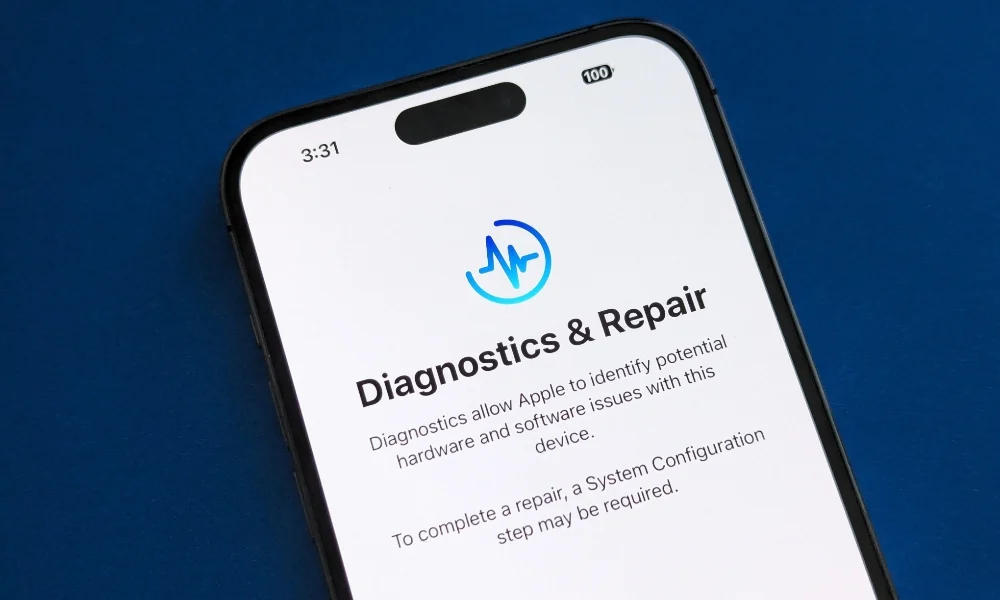
You can contact Apple Support through the official website or app and run a remote test on your device. It helps identify hardware faults, audio routing issues, or potential software bugs. It’s fast, easy, and free to do, and it may pinpoint exactly what’s wrong before you head to a store.
When to Visit a Repair Center
If your speaker is damaged or none of the troubleshooting steps have worked, visiting an authorized Apple repair center is the next step.
They can run hardware diagnostics and perform safe replacements if needed, especially if your device is still under warranty or has AppleCare.
Preventive Tips for the Future
Here are some tips that should help you prevent such an issue in the future.
- Keep your iPhone clean and dry.
- Avoid overusing Bluetooth audio if it frequently causes routing errors.
- Update iOS regularly to avoid software bugs.
- Use a good-quality case to prevent drops or water exposure.
Conclusion
Not hearing calls on your iPhone can be annoying, but most issues are fixable with a few careful checks. By narrowing down software, hardware, and app factors, you can usually solve the problem quickly, without needing expensive repairs.
