
Keeping your wireless speakers up to date isn’t just about getting the best sound—it’s about protecting your investment. Firmware updates often get overlooked, yet they play a crucial role in how well your speaker performs over time.
Just like your phone or computer, wireless speakers have a system working in the background that controls how everything runs. That system is called firmware. And yes, manufacturers do release updates for it.
Whether you’re dealing with dropouts, connection glitches, or just hoping for new features, updating your firmware could be the fix you’re looking for. In this guide, you’ll learn what firmware is, how to know if an update is needed, and the safest way to go about it.
What Is Firmware and Why Does It Matter?
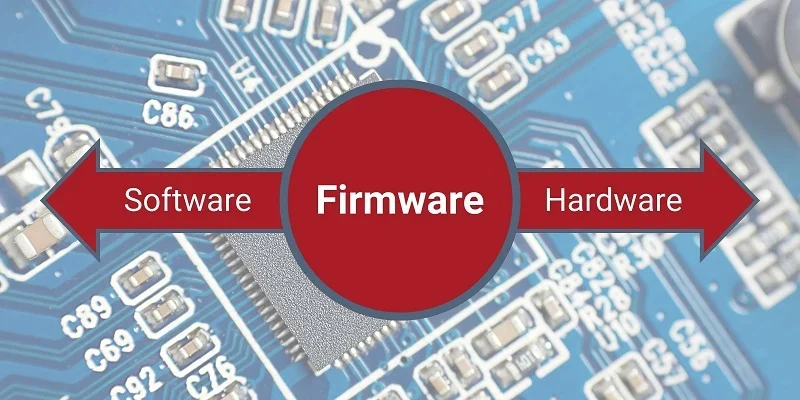
Firmware is the built-in software programmed directly into your speaker’s hardware. Unlike regular apps or music streaming software, firmware is the brain behind the scenes, managing tasks like Bluetooth pairing, sound output, and system stability.
It’s different from software in that you can’t just uninstall or easily modify it. It’s a low-level program meant to work closely with the hardware, ensuring that the speaker functions as designed.
Here’s why keeping your firmware updated is essential:
- Ensures better compatibility with new devices and apps
- Fixes known bugs or glitches that affect performance
- Adds new features or functionality released by the manufacturer
- Improves overall sound quality or battery efficiency
- Enhances security, especially in smart or Wi-Fi-enabled speakers
While these updates may seem minor at first glance, they can significantly extend the life and usability of your wireless speaker.
How to Know If Your Speakers Need a Firmware Update
Many people don’t realize their speaker even has firmware, let alone that it needs updating. The good news? Most modern brands make it easy to check.
Look for these common signs:
- Frequent disconnection or connectivity issues
- Reduced sound quality after app updates
- Lag when pairing with Bluetooth devices
- Pop-up notifications in the speaker’s app
- Sudden battery drain or overheating

Most wireless speaker brands have companion apps available on the App Store or Google Play. These apps typically alert you when an update is available, and often provide one-tap instructions to initiate the update.
You can also visit the manufacturer’s official website to see firmware release notes for your specific model.
Some premium models even have built-in model-specific update alerts. These might flash indicator lights or display update prompts when connected to their respective apps. Always keep the app up to date to ensure you never miss these cues.

The Position of the Light Can Vary Based on the Speaker Brand and Model
General Steps for Updating Wireless Speaker Firmware
While every brand has its own update system, most wireless speakers follow a similar process when it comes to firmware. Whether you’re using a premium speaker or a compact Bluetooth model, these universal steps should give you a solid starting point.
Before starting, make sure your speaker is compatible with your mobile device or computer and that you’ve downloaded the appropriate app or desktop software recommended by the manufacturer.
Follow these general steps to update your firmware:
- Fully charge your wireless speaker or keep it plugged in to avoid interruptions during the update.
- Install the official companion app from your speaker’s brand (e.g., JBL Portable, Bose Connect, Sony Music Center).
- Connect your speaker to your phone or computer using Bluetooth or Wi-Fi, depending on the model.
- Launch the app and allow it to detect your speaker automatically.
- Navigate to the settings or device menu inside the app.
- Look for a section labeled “Firmware,” “Software Update,” or something similar.
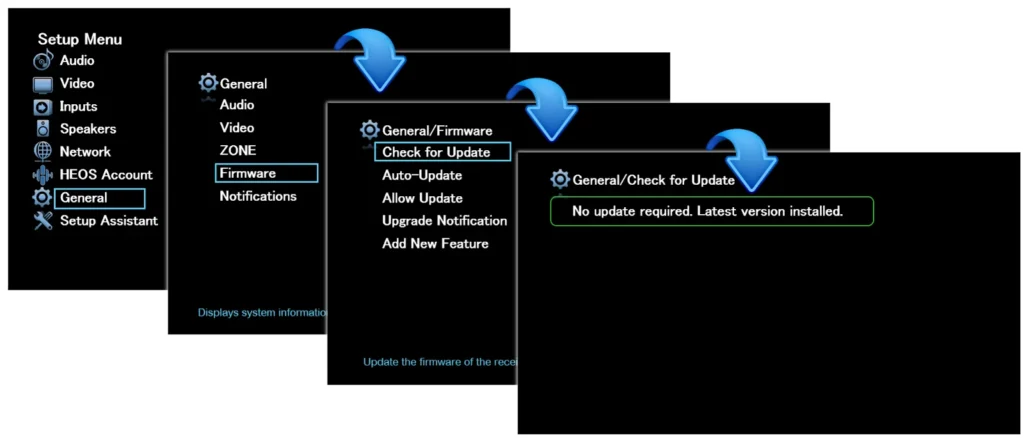
Example
- If an update is available, tap the “Update” or “Install” option.
- Follow the on-screen instructions and avoid using the device while the update is in progress.
- Wait until the process reaches 100% and a confirmation message appears.
- Restart your speaker if prompted, or unplug and re-pair it if the update doesn’t take effect immediately.
It’s essential not to turn off your phone, tablet, or the speaker itself during the update. Losing power mid-process may corrupt the firmware, potentially rendering the device unusable.
Always update over a strong and stable Wi-Fi or Bluetooth connection for best results. Avoid crowded networks or multitasking heavily on your phone during the update. Taking a few minutes to do this right will ensure your speaker continues to perform smoothly.
Brand-Specific Update Methods
While general steps apply to most wireless speakers, knowing the brand-specific process makes updating even easier. Here’s a quick guide to five popular brands and how you can update their firmware safely.
Bose
Use the Bose Connect app for portable speakers or the Bose Music app for innovative and Wi-Fi models. Both apps are available on iOS and Android.
You can also visit the Bose Firmware Update Center on their website to manually update via USB for select models.
JBL
JBL uses the JBL Portable app, formerly known as JBL Connect. Once paired, the app will notify you if an update is available.
Updates are wireless, and you can find support and firmware release notes on JBL’s official support site.
How to Update JBL Portable Bluetooth Speaker Firmware
Sony
For Sony speakers, install the Sony Music Center app. It automatically detects your speaker and prompts for updates when needed. Check Sony’s Support page for firmware manuals and downloadable content, especially if using older models.
Ultimate Ears
Use the BOOM & MEGABOOM app for Ultimate Ears devices. It supports over-the-air updates and guides you step-by-step.
Alternatively, desktop update tools are available on the Ultimate Ears website under the Support section.
Sonos
Sonos speakers update through the Sonos app, which works with both Wi-Fi and smart home setups.
Open the app and go to Settings > System > System Updates. For firmware-related FAQs and troubleshooting, visit the Sonos Support site.
Sonos 16.1 firmware update – So No? Or So Yes?
No matter the brand, always ensure your speaker is fully charged and connected properly to prevent errors during the update process.
Common Problems During Firmware Updates
Even a simple update can run into issues. Here are some of the most common:
- Connection dropouts during the update process
- Update stuck at a certain percentage
- The app not detecting the speaker
- Update fails, and the speaker won’t reboot
- App says update is complete, but features don’t work
If any of these occur, restarting the speaker and app usually resolves the issue. If not, check the brand’s support page for advanced troubleshooting.
What to Do If the Update Fails
If your firmware update fails, don’t panic. It’s more common than you’d think. First, restart both your speaker and the app you’re using. Then, check your internet or Bluetooth connection and try again in a stable environment.
If the update continues to fail, try switching devices (e.g., from phone to tablet) or updating via desktop software if the brand supports it.
Finally, visit the manufacturer’s support page or contact customer service. They may provide manual update files or suggest a reset process to get things back on track.
Tips for Smooth Firmware Updates
To avoid complications during a firmware update, it helps to be prepared. Keep these quick tips in mind:
- Ensure your speaker is at least 80% charged or plugged in.
- Close unnecessary apps on your phone or computer.
- Use a reliable internet or Bluetooth connection.
- Keep the device and speaker near each other.
- Don’t interrupt the process: no calls, reboots, or unplugging the cable.
These steps can help you update without frustration.
Conclusion
Updating your wireless speaker’s firmware might seem like a small task, but it can significantly improve sound quality, battery life, and security. Whether you’re using Bose, JBL, Sony, or any other brand, following the correct method ensures your speaker performs at its best.
Always keep an eye out for update notifications and take a few minutes to go through the process. With the steps and tips you’ve learned here, you’ll be better equipped to keep your device current and avoid avoidable tech hiccups.
Your speaker (and your ears) will thank you for it.
